
Can you upload your own art to a Samsung Frame TV? Yes, you absolutely can! Displaying your personal art or curated digital art on your Samsung Frame TV is a fantastic way to personalize your space and showcase your creativity. This guide will walk you through everything you need to know to effortlessly upload art to Frame TV and make it a stunning focal point in your home. We’ll cover various methods, from using the Frame TV app for art to exploring Samsung Art Store alternatives and even setting up Frame TV slideshow settings.
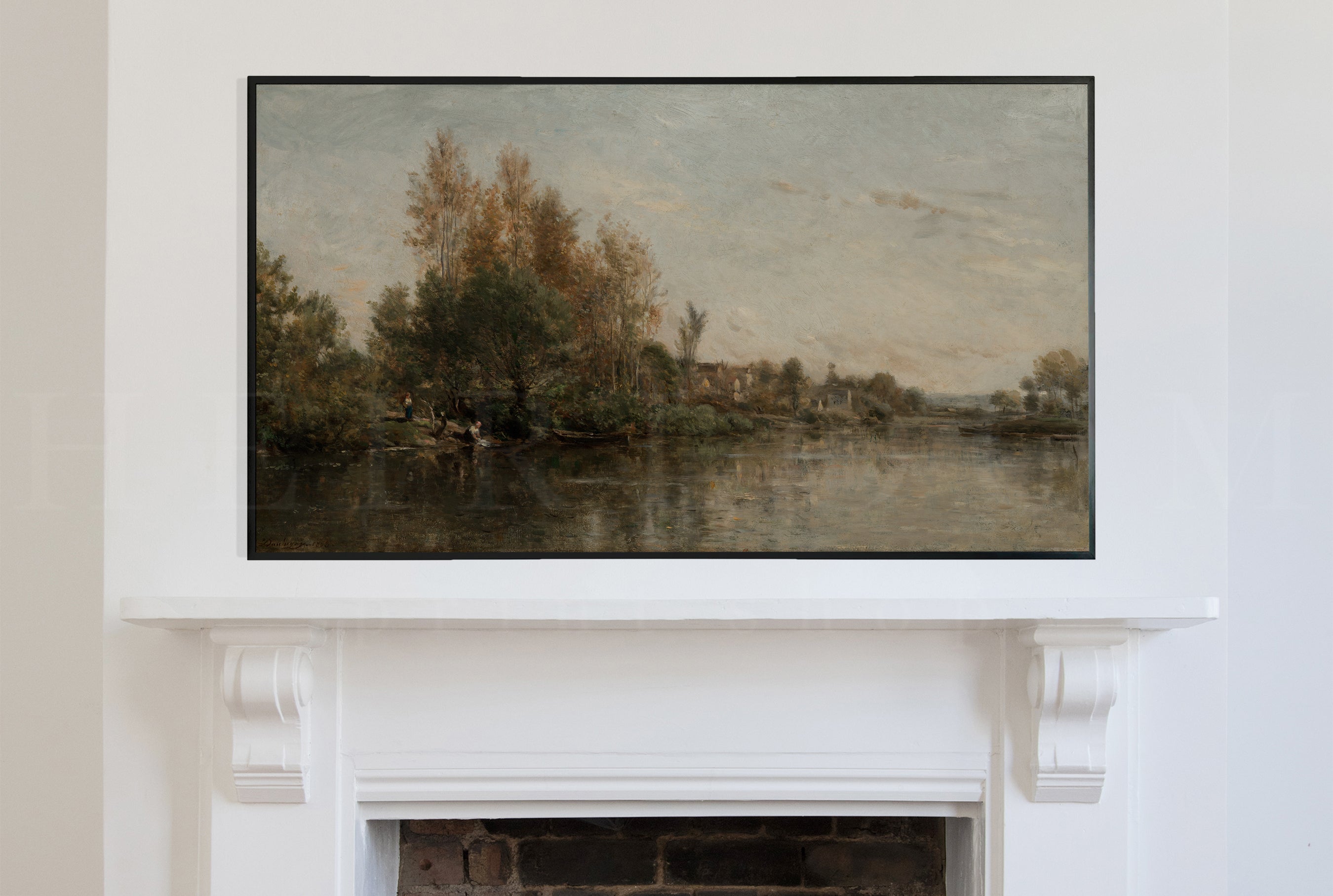
Image Source: cdn.shopify.com
Bringing Your Vision to Your Frame TV
The Samsung Frame TV is more than just a television; it’s a dynamic piece of art. Its unique design mimics a picture frame, and when not in use for viewing, it displays digital art or personal photos. This makes displaying art on Frame TV a key feature. Whether you’re an artist wanting to share your creations, a photographer looking to exhibit your shots, or simply someone who wants to liven up their walls with personal memories, loading photos to Frame TV is straightforward.
Accessing Your Digital Masterpieces
There are several ways to get your artwork onto your Frame TV. You can use Samsung’s official methods, explore third-party platforms that offer a wealth of Frame TV digital art, or even use your phone to beam content directly.
Method 1: The Frame TV App for Art
Samsung provides a dedicated app that makes managing and uploading art simple. This is often the most convenient way for Samsung Frame TV art upload.
Using the SmartThings App:
The primary way to interact with your Frame TV for art is through the Samsung SmartThings app. This app allows you to control various Samsung devices, including your Frame TV.
- Download the App: First, download the SmartThings app from your device’s app store (iOS App Store or Google Play Store).
- Connect Your TV: Ensure your Frame TV is connected to your home Wi-Fi network and that Bluetooth is enabled on your mobile device. Open the SmartThings app and follow the on-screen instructions to discover and add your Frame TV to your account.
- Navigate to Art Mode: Once your TV is connected, you can access its features through the app. Look for an option related to “Art Mode” or “Ambient Mode.”
- Upload Your Art: Within the Art Mode section, you should find an option to upload photos or artwork. You can select images directly from your phone’s gallery or cloud storage.
- Explore Samsung Art Store: The SmartThings app also provides access to the Samsung Art Store, where you can purchase and download professional artwork. This is a great option if you’re looking for high-quality, curated pieces.
Method 2: USB Drive for Photos and Art
For a direct approach, especially for adding personal photos to Frame TV, a USB drive is an excellent choice.
- Prepare Your USB Drive: Ensure your USB drive is formatted to FAT32. Most modern TVs and computers support this format.
- Transfer Your Files: Copy the art files or photos you want to display onto the USB drive. It’s best to have them in a common image format like JPEG or PNG.
- Insert the USB Drive: With your Frame TV powered on, carefully insert the USB drive into the designated USB port.
- Access Via Media Player: Your Frame TV should automatically detect the USB drive. You might see a prompt on the screen, or you can manually navigate to the TV’s input menu and select the USB drive. This essentially turns your USB into a Frame TV media player.
- Select and Display: Browse the files on the USB drive and select the artwork or photos you wish to display. You can usually set them to display individually or create a slideshow.
Method 3: Cloud Storage Integration
Many users prefer to keep their art files in cloud storage services. Samsung’s Frame TV often integrates with popular cloud platforms.
- Link Your Cloud Account: Check your Frame TV’s settings or the SmartThings app for options to link cloud storage services like Google Photos, Dropbox, or OneDrive.
- Access and Upload: Once linked, you can browse and select artwork directly from your cloud albums to display on your Frame TV. This is a convenient way to manage your Frame TV digital art collection.
Method 4: HDMI and Other Media Players
While the Frame TV is designed for static art display, it also functions as a regular TV. You can use external devices connected via HDMI to display art.
- Computer Connection: Connect your computer to the Frame TV using an HDMI cable. You can then display any image file from your computer.
- Dedicated Media Players: Devices like Apple TV, Roku, or even a dedicated Frame TV media player (like a small form-factor PC or a Raspberry Pi running specialized software) can be used. You can load your art onto these devices and then stream or display them on the Frame TV via HDMI. This is a flexible option if you have a large collection or want to use specialized software for presentation.
Optimizing Your Art for the Frame TV
To ensure your artwork looks its best, consider these optimization tips:
Aspect Ratio and Resolution
- Match the TV’s Aspect Ratio: The Samsung Frame TV has specific aspect ratios. Newer models are often 16:9, but older models might have variations. Check your TV’s specifications to ensure your artwork matches the native aspect ratio to avoid cropping or letterboxing.
- Recommended Resolution: Aim for a resolution that matches or exceeds the TV’s native resolution (e.g., 4K, which is 3840 x 2160 pixels). Higher resolution ensures sharper details.
File Formats
- Supported Formats: The Frame TV generally supports common image formats like JPEG, PNG, and sometimes GIF. For video art, it supports MP4 and other standard video codecs.
- File Size: While high resolution is good, excessively large file sizes might lead to slower loading times or playback issues. Optimize your files if necessary.
Custom Art for Frame TV: Unleash Your Creativity
The beauty of the Frame TV lies in its ability to showcase custom art for Frame TV. This opens up a world of possibilities beyond pre-curated collections.
Creating Your Own Digital Art
- Software: Use graphic design software like Adobe Photoshop, Illustrator, GIMP (free), or Procreate (for iPad) to create your digital paintings, illustrations, or graphic designs.
- Photography: Edit your personal photographs to enhance colors, contrast, and composition before uploading them.
- AI Art Generators: Explore AI art tools to generate unique visual pieces. You can then refine these creations in editing software.
Sourcing Art Online
Beyond the Samsung Art Store, there are many Samsung Art Store alternatives where you can find and purchase digital art.
- Etsy: Many artists sell digital downloads of their work on Etsy, often formatted specifically for digital displays.
- Art Marketplaces: Platforms like Saatchi Art, Artsy, and DeviantArt host a vast array of digital art.
- Free Art Resources: Websites like Unsplash, Pexels, and Pixabay offer high-quality, royalty-free images that you can use for personal display. Be mindful of licensing if you plan to use them in any commercial context.
Displaying Your Art: Beyond Just Uploading
Once your art is uploaded, you have control over how it’s presented.
Frame TV Slideshow Settings
The Frame TV slideshow settings allow you to create dynamic displays.
- Create a Playlist: When uploading multiple photos or artworks, you can often group them into playlists or albums.
- Set Display Intervals: Choose how long each piece of art stays on screen before transitioning to the next. Options typically range from a few seconds to several minutes.
- Transition Effects: Some settings allow you to choose transition effects between images, adding a subtle animation to your display.
- Randomize Order: For a surprise element, you can set the slideshow to play in a random order.
Ambient Mode Settings
The Frame TV excels in its “Ambient Mode,” where it displays art when not actively being used as a TV.
- Motion Sensor: The TV often has a motion sensor that can turn the screen on when someone enters the room and off when the room is empty, saving energy.
- Brightness and Color Temperature: Adjust the brightness and color temperature to match your room’s lighting conditions, making the art look as natural as possible. You can also set these to adjust automatically.
- Matting Options: Some Frame TV models offer matting options, allowing you to add a border or “mat” around your artwork, mimicking a traditional framed print.
Troubleshooting Common Upload Issues
While the process is generally smooth, you might encounter occasional hiccups.
- File Not Supported: Ensure you’re using supported file formats (JPEG, PNG, MP4). If not, convert your files using an image or video converter.
- TV Not Recognizing USB: Try reformatting the USB drive to FAT32 or using a different USB port. Ensure the files on the drive are compatible.
- App Connectivity Problems: Check your Wi-Fi connection on both your phone and the TV. Restart both devices and the SmartThings app. Make sure your TV’s firmware is up to date.
- Image Quality Issues: If images appear pixelated or blurry, it’s likely due to low resolution. Re-upload with a higher-resolution version of your artwork.
Enhancing Your Frame TV Art Experience
To truly make your Frame TV shine, consider these advanced tips:
- Themed Displays: Create collections of art based on seasons, holidays, or specific moods. For instance, use warm-toned art in autumn or festive pieces during winter.
- Personalized Photo Walls: Upload a mix of family photos, vacation snapshots, and even scanned vintage photographs to create a dynamic, personal gallery.
- Artist Spotlights: Dedicate periods to showcase the work of a favorite artist, either from the Samsung Art Store or found through Samsung Art Store alternatives.
- Artistic Matting: Experiment with the matting features to frame your artwork in different ways. Some users even create custom digital mats to complement their art.
- Professional Framing: For a truly authentic look, consider using the Frame TV’s physical bezel options. Samsung offers various frame styles (wood, metal, etc.) that can be swapped out to match your decor. This complements the displaying art on Frame TV experience significantly.
The Samsung Art Store vs. Third-Party Options
When it comes to Frame TV digital art, you have two main avenues: the official Samsung Art Store and external sources.
| Feature | Samsung Art Store | Third-Party Sources (Etsy, etc.) |
|---|---|---|
| Selection | Curated, professional, often exclusive | Vast, diverse, independent artists, various styles |
| Quality | High-quality, optimized for Frame TV | Varies; look for specific Frame TV formatting recommendations |
| Cost | Purchase per artwork or subscription options | Varies greatly; often one-time digital download purchases |
| Ease of Use | Seamless integration with SmartThings app | May require manual download and upload via USB or app |
| Legality | Legally licensed and authorized | Ensure you have the right to display purchased art |
| Support | Direct support from Samsung | Support from individual artists or platforms |
Choosing between them depends on your preference for curated selections versus exploring a wider, more eclectic range of art. For custom art for Frame TV, third-party sources are often more fruitful.
Frequently Asked Questions (FAQ)
Q1: What is the best resolution for art on a Samsung Frame TV?
A: The best resolution is typically the native resolution of your Frame TV model. For 4K models, aim for 3840 x 2160 pixels. This ensures the sharpest and most detailed display.
Q2: Can I display videos on my Samsung Frame TV?
A: Yes, Samsung Frame TVs can display videos. Supported formats usually include MP4. You can upload video files via USB or through the SmartThings app, similar to how you upload art to Frame TV.
Q3: How do I set up a slideshow of my photos on the Frame TV?
A: You can typically create a slideshow by uploading multiple photos to a folder on a USB drive or within the SmartThings app. Then, access your media library on the TV and select the slideshow option, adjusting the Frame TV slideshow settings for timing and transitions.
Q4: Is there a limit to the number of photos I can upload to my Frame TV?
A: While there isn’t usually a strict limit on the number of files, performance might be affected by having an extremely large library. It’s generally recommended to manage your art collection in manageable albums or playlists.
Q5: Where can I find more art for my Frame TV besides the Samsung Art Store?
A: There are many Samsung Art Store alternatives. Popular options include Etsy for digital art downloads, art marketplaces like Saatchi Art and Artsy, and free stock photo sites like Unsplash and Pexels for royalty-free images.
Q6: Can I use my phone as a Frame TV media player?
A: Yes, using the SmartThings app, your phone acts as a remote and a way to upload content, effectively making it a Frame TV media player for transferring files. You can also use screen mirroring features for temporary displays.
Q7: How do I ensure my custom art looks good?
A: To get the best results for your custom art for Frame TV, ensure it matches the TV’s aspect ratio and has a high resolution. Check for any unwanted cropping or stretching.
By following these detailed steps and tips, you can transform your Samsung Frame TV into a personalized art gallery, perfectly showcasing your chosen pieces and memories. Enjoy the beauty and versatility it brings to your home!