
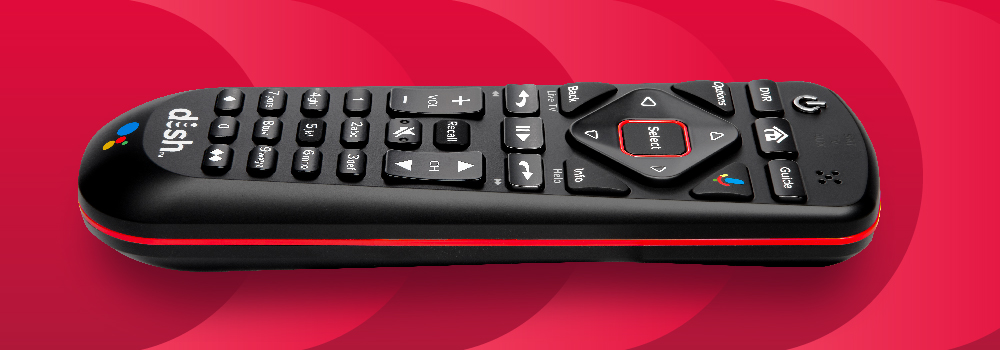
Image Source: www.usdish.com
How To Program Dish Remote To Tv Without Code Easy Guide
Lots of people want to use just one remote, their Dish remote, to control their TV. This means turning the TV on and off, changing the volume, and maybe even picking inputs, all without needing the TV’s own remote. Can you do this without needing to find a special code for your specific TV brand? Yes, you can! You can program your Dish remote to your TV using simple methods that don’t need a code lookup. This guide will walk you through how to do just that.
Why Program Your Dish Remote?
Using one remote for everything is just easier. You don’t have to juggle two or three remotes. It cleans up your coffee table. When your Dish remote can also control your TV’s power and volume, watching TV becomes a smoother experience.
Getting Ready to Program
Before you start, make sure you have what you need.
- Your Dish remote.
- Your TV that you want to control.
- Fresh batteries in your Dish remote can help. A weak battery might make programming fail.
- Point the remote at your TV during the process.
Dish has different remotes. The steps are mostly the same for newer remotes like the 5.2, 5.4, and Hopper remotes. Older remotes might have slightly different button names, but the basic idea of programming without a code stays the same.
The Auto-Search Method: No Code Needed
The easiest way to program your Dish remote to your TV without a code is using the remote’s built-in auto-search feature. This feature makes the remote send out test signals until your TV responds. When your TV responds, the remote knows it found the right signal for your TV. This is how you program Dish remote automatically. It’s a simple way to connect Dish remote to TV without code.
This method helps you pair Dish remote to TV no code. It’s much faster than looking up codes and trying them one by one.
Steps for Auto-Search Programming
Here are the general steps for most modern Dish remotes. The names of buttons might be a little different on very old models, but the process is similar.
Setting Up for Search
- Turn on your TV. Make sure the TV is on and you can see a picture, maybe from your Dish receiver or just a setup screen.
- Find the TV button. Look on your Dish remote for a button labeled ‘TV’. It might be near the top.
- Press and hold the TV button. Push this button down and keep holding it.
Starting the Search
- While holding the TV button, press the POWER button. Push the ‘POWER’ button one time.
- Watch the lights. On most Dish remotes, the button lights at the top (like SAT, TV, AUX) will light up. Then, the ‘TV’ light should stay lit. This shows the remote is ready to be programmed for the TV.
- Let go of the TV button. The TV light should stay on.
Running the Auto Scan
This is where the remote starts testing signals. This is the Dish remote auto scan setup.
- Press the POWER button again. This tells the remote to start the auto-search.
- Watch your TV. The remote is now sending out power signals, one after another, for different TV brands. Your TV might turn off during this step.
- Stop when the TV turns off. As soon as your TV turns off, press the POWER button on the Dish remote one more time right away. This stops the search. If you wait too long, the remote might send the next signal, and you’ll miss the correct one.
- Press the # button. After the TV turns off and you press POWER to stop the search, press the ‘#’ button on the remote. This saves the setting. The TV light on the remote should flash a few times.
You have now told your Dish remote which signal turns your TV off.
Testing the Remote
Now you need to check if the remote can control other functions, especially volume. This is part of syncing Dish remote with TV.
- Turn your TV back on. Use the POWER button on the Dish remote. It should turn the TV back on. If it doesn’t, the programming didn’t work. You’ll need to try the auto-search steps again.
- Test the Volume buttons. Try pressing the VOLUME UP and VOLUME DOWN buttons on the Dish remote. Your TV’s volume bar should show up and change.
- Test the MUTE button. Press the MUTE button. Your TV’s sound should mute and unmute.
If the POWER, VOLUME, and MUTE buttons work, you’ve successfully programmed your Dish remote to control your TV without needing a code!
What if the Auto-Search Didn’t Work?
Sometimes, the auto-search doesn’t find your TV’s signal on the first try. Don’t worry, you can try again.
- Repeat the Auto-Search: Go back to Step 1 above and follow all the steps carefully. Make sure you are pointing the remote at the TV and press the POWER button immediately when the TV turns off.
- Try the search more than once: The remote scans through many signals. Sometimes it works better on a second or third try.
- Check the batteries: As mentioned before, weak batteries can mess things up. Put in fresh ones and try again.
If the auto-search still doesn’t work after a few tries, your specific TV model might not be in the remote’s built-in list that the auto-search checks, or maybe the auto-search feature on your remote model works a little differently.
Deciphering Different Dish Remotes
Dish Network has used several remote models over the years. While the auto-search method is common, the exact buttons or sequence might have small changes.
- 5.2 and 5.4 Remotes: These are very common remotes. The steps listed above usually work for them. Look for the SAT, TV, AUX buttons at the top.
- Hopper Remotes (e.g., 40.0, 50.0, 52.0): These remotes often come with Hopper or Wally receivers. They might use a slightly different method, sometimes involving the receiver’s menu. However, many still support a version of the auto-search directly from the remote. For some Hopper remotes, you might need to go into the Hopper’s settings menu (usually under ‘Remote Control’ or ‘Pair Remote’) and select TV pairing there. Even there, you often have an option to ‘Search’ for the TV code, which is the receiver doing the auto-search for you, effectively achieving Dish remote auto scan setup via the box.
- Older Remotes (e.g., 3.0, 3.2, 4.0): These older remotes also have programming modes. The steps might involve holding different buttons, like ‘SAT’ and ‘TV’ at the same time, or using a ‘Code Search’ button. The basic idea of getting the remote ready, starting a scan, and stopping when the TV reacts is similar. Refer to the specific manual for that remote model if the main steps don’t work.
This guide focuses on methods that don’t require you to type in a code you looked up. The auto-search is the main way to achieve this directly from the remote. Using the receiver’s menu to search for the TV code is another way that avoids you needing to know or enter a code.
Manual Search Without Knowing the Code?
While the term “manual setup” often means entering a known code, some remotes have a mode that is like a “manual search” but without needing you to press the power button repeatedly.
On some older Dish remotes, you could enter the setup mode and then press the Channel Up button repeatedly. The remote would send out a different power-off signal each time you pressed Channel Up. You would stop pressing when the TV turned off. This is a form of manual setup for Dish remote that doesn’t require a code number, but it’s less automated than the auto-search described earlier. It’s another way to connect Dish remote to TV without code.
For most modern Dish remotes, the “manual setup without code” refers to the auto-search feature we already covered.
Interpreting the Setup Process
The auto-search method works because the remote has a long list of signals (codes) that control TVs. When you start the auto-search, it just starts sending these signals out one by one, very quickly. It’s like it’s saying “Are you this TV?” then “Are you this TV?” and so on.
When your TV finally hears the signal meant for it, it turns off. By quickly pressing POWER again, you tell the remote, “That last signal you sent? That’s the one!” Then pressing # saves that signal (or code, even though you didn’t see the number) to the TV button.
This process is effectively pairing Dish remote to TV no code needed by you. It lets the remote program Dish remote automatically by finding the correct control signal itself.
Alternative Dish Remote Programming Methods (Without Code Input)
Beyond the direct remote auto-search, other ways exist to link your Dish remote to your TV without needing to look up and type in a specific code number:
- Using the Dish Receiver Menu: As mentioned for Hopper remotes, you can often initiate the TV setup through the Dish receiver’s on-screen menu. You select your TV brand (sometimes model), and the receiver helps the remote try different signals until one works. This is another form of automated search, just started from the receiver interface rather than directly on the remote buttons. It’s still a way to connect Dish remote to TV without code entry by you.
- Dish Anywhere App (Limited Functionality): While not for programming the physical remote, the Dish Anywhere app can control your receiver and sometimes basic TV functions (like power if linked) from your smartphone or tablet. This is an alternative control method, not remote programming, but it offers control without needing the physical remote or codes.
These methods all aim to make the process easier than finding a specific multi-digit code for your TV’s brand and model.
Setup Dish Universal Remote Aspects
Your Dish remote is designed to be a Setup Dish universal remote for at least your TV and sometimes an AUX device (like an audio receiver). When you program the TV control using the auto-search, you are using the remote’s universal capabilities. The remote stores the TV’s control code under the ‘TV’ button. You can switch between controlling the Dish receiver (SAT mode) and the TV (TV mode) using the buttons at the top. The auto-search method makes setting up this universal control easy because you don’t need to deal with code lists.
Troubleshooting Dish Remote TV Control
What if you followed all the steps and the remote still won’t control the TV volume or power? Here are common issues and things to check:
- Did you press POWER fast enough? The most common mistake during auto-search is waiting too long after the TV turns off. If you see the TV turn off, press the POWER button on the remote immediately. Don’t wait even a second or two. If you waited too long, the remote has already moved to the next signal. You’ll need to start the process over.
- Did you press # to save? After you stop the search by pressing POWER, you must press the ‘#’ button right after to save the setting. If you forget this step, the remote won’t remember the signal it found. The TV light on the remote should blink to confirm saving.
- Are the batteries good? I know, I keep saying it, but it’s often the problem. Weak batteries can make the remote not send signals correctly or not hold the programming.
- Is the remote pointing at the TV? Make sure there’s a clear line of sight between the front of the remote and your TV during the search and testing.
- Did you start with the TV on? The auto-search needs the TV to be on to detect when it turns off.
- Is your TV compatible? Most major TV brands work with Dish remotes, but extremely old, very new, or very niche brands might not have a code in the remote’s database that the auto-search can find. If auto-search fails multiple times, even using the receiver’s menu search might not work if the code isn’t there. In rare cases, you might need to look up a specific code online or in a manual as a last resort, but this guide focuses on the code-free methods.
- Is the remote working otherwise? Does the remote control the Dish receiver? If not, the remote itself might be broken or needs pairing with the receiver first. Make sure the SAT button works and controls the Dish box before trying to program the TV.
- Did you select the right device mode? After programming, make sure the ‘TV’ light at the top of the remote is lit or that you press the ‘TV’ button before trying to control the TV. The remote needs to be in TV mode. Some newer Hopper remotes don’t have separate device buttons; they control the TV volume by default or are set up through the receiver menu.
Following these troubleshooting steps can help fix issues when programming Dish remote automatically or when trying to sync Dish remote with TV. This is all part of using your Dish Network remote control guide effectively.
Grasping Remote Compatibility
Not all Dish remotes work with all Dish receivers, and their ability to control TVs can vary slightly.
- IR vs. RF: Most Dish remotes use Infrared (IR) signals to control the TV. This means the remote needs a direct line of sight to the TV’s IR sensor. Some Dish remotes can control the receiver using Radio Frequency (RF), meaning you don’t need to point it at the box, but they usually still use IR for the TV. Make sure you are pointing the remote at the TV when programming and operating TV functions.
- Remote Model and Receiver Model: Generally, newer remotes are made for newer receivers. A Hopper remote (like the 52.0) works best with Hopper receivers. An older 5.4 remote works well with older Wally, ViP series, or 722 receivers. Make sure your remote is compatible with your Dish receiver first, then try programming the TV function. Information on which remote works with which receiver can often be found on the Dish Network website or in your receiver’s manual.
Understanding the basic function of your specific Dish Network remote control guide is helpful, even though this guide focuses on the code-free TV programming part.
Steps for Different Remote Types Revisited (Simpler Look)
Let’s simplify the auto-search steps slightly, thinking about the common types again.
For Dish 5.2 / 5.4 Remote:
- TV On.
- Hold TV button.
- Press POWER button once.
- Let go of TV. TV light stays on.
- Press POWER again. Search starts.
- Watch TV. When it turns off, press POWER right away.
- Press # button. TV light blinks.
- Test POWER and VOLUME.
For Dish Hopper Remote (e.g., 52.0, via Receiver Menu):
- Make sure remote is paired with Hopper (usually done during initial setup).
- Go to Hopper Menu (Press MENU or HOME button).
- Find ‘Settings’ or ‘Setup’.
- Find ‘Remote Control’ or ‘Pair Remote’.
- Select ‘TV Setup’ or ‘Pair TV’.
- Choose your TV brand from the list.
- Select ‘Search’ or ‘Find Code’. The Hopper will tell the remote to try codes.
- Follow on-screen steps. The TV might turn off. Confirm when it works.
- Test VOLUME and POWER on the remote.
This second method, using the receiver’s menu, is a strong alternative Dish remote programming method that avoids you needing a code. It leverages the receiver’s interface to manage the Dish remote auto scan setup.
What to Do If No Code Works (Even Auto-Search)
In the rare event that the auto-search methods (direct remote or via receiver menu) fail to find a code that controls your TV, it might mean:
- Your TV is too new or too old for the remote’s built-in code list.
- There’s a problem with your remote (though troubleshooting steps should rule this out).
If you’ve tried the auto-search multiple times carefully and it simply won’t find a match that works for both power and volume, then looking up a specific code for your TV model on the Dish Network website or in the remote manual might be the only option left. But for most common TVs, the code-free auto-search works well. This guide aims to keep you from needing to go down the code lookup path!
Remember, the goal is to program Dish remote automatically or use methods like the receiver menu search to pair Dish remote to TV no code input from you.
Final Check After Programming
Once you think you’ve got it programmed using the auto-search method:
- Turn the TV off using the Dish remote’s POWER button.
- Turn the TV on using the Dish remote’s POWER button.
- Change the volume using the Dish remote’s VOLUME buttons.
- Mute and unmute using the Dish remote’s MUTE button.
If all these work, you are good to go! Your Setup Dish universal remote is now controlling your TV. You have successfully completed the Dish remote auto scan setup and synced Dish remote with TV.
Frequently Asked Questions
Q: Do I have to program the remote every time I change the batteries?
A: No. Once you program the remote to control your TV, it should remember the setting even when you change the batteries. The programming is stored in the remote’s memory.
Q: My remote controls the TV power but not the volume. What should I do?
A: This can happen sometimes with the auto-search. The remote finds a signal that turns the TV off, but that same signal doesn’t control the volume correctly. Try repeating the auto-search steps. Press the POWER button to stop the search immediately when the TV turns off. If it still only controls power, try the auto-search again, but this time wait a moment after the TV turns off before pressing POWER to stop. The next signal might be a better match. If repeated auto-search fails, you might need to try a specific code lookup for your TV model as a last resort.
Q: The TV light on my remote doesn’t light up. Is my remote broken?
A: If the TV light doesn’t come on when you press the TV button, or during the programming steps, the remote might have dead batteries, might be broken, or might be locked in a different mode. Try fresh batteries. If that doesn’t help, you might need to troubleshoot the remote itself (checking for stuck buttons) or consider replacing it.
Q: Can I program the Dish remote to control my soundbar or audio receiver without a code?
A: The auto-search method described here is usually for TVs. Some Dish remotes allow programming an AUX device (like a soundbar or audio receiver). The process is similar (hold AUX, press POWER, then POWER again to search), but compatibility varies more than with TVs. You might need a code for many AUX devices, or the auto-search for AUX might not find the right signal. This guide focuses on TV control.
Q: My remote controls the receiver but not the TV after following these steps.
A: Make sure you successfully completed all steps, especially pressing POWER to stop the search right when the TV turned off and pressing # to save. Make sure you are pointing the remote at the TV. Check batteries. If using a Hopper remote programmed via the receiver menu, check the settings in the menu again. If the receiver is controlled but the TV is not, the TV programming part failed. Try the steps again carefully.
Q: Does this work for all TV brands?
A: The auto-search works for most major TV brands (like Samsung, LG, Sony, Vizio, TCL, etc.). It has a large database of codes. Very old TVs or very small, less common brands might not be included in the remote’s database, meaning the auto-search won’t find a working code.
Q: What is the difference between programming with a code and programming without one?
A: Programming with a code means you find a 3, 4, or 5-digit number for your TV brand/model, enter the setup mode on the remote, type in the code, and press #. Programming without a code, using auto-search, means the remote tries all those codes itself until it finds one that works (by seeing your TV turn off). Both methods achieve the same goal, but the auto-search lets you pair Dish remote to TV no code input from you.
By using the auto-search method, you can easily program Dish remote automatically and get your Dish remote controlling your TV’s basic functions quickly and without needing to search for code lists. It’s a handy feature designed to make your Dish Network remote control guide experience simpler.