
Yes, you can play your PowerPoint (PPT) presentations on a TV. It’s a straightforward process that can greatly enhance your audience’s experience by allowing you to display PPT on a large screen. This guide will walk you through various methods, from wired connections to wireless solutions, ensuring you can confidently play PPT presentation on big screen for any occasion.
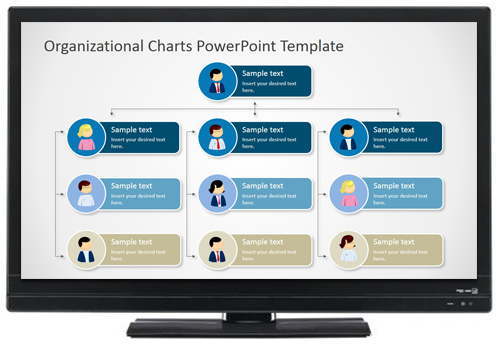
Image Source: cdn.slidemodel.com
Why Project Your PowerPoint Presentation to a Monitor?
Sharing your presentation on a television screen offers several significant advantages over a traditional laptop display. It allows you to present PowerPoint on TV for a wider audience, ensuring everyone in the room can see your content clearly. This is particularly beneficial for:
- Team meetings: Get everyone on the same page with clear visuals.
- Training sessions: Make complex information easier to absorb with larger, more visible graphics.
- Sales pitches: Impress clients with a professional and impactful visual presentation.
- Classroom instruction: Engage students with dynamic and accessible content.
- Informal gatherings: Share photos or videos with family and friends on a bigger display.
Connecting Your Laptop to Your TV: Wired Methods
Wired connections are often the most reliable and straightforward way to connect laptop to TV for presentation. They typically offer stable signal quality and require minimal setup.
1. HDMI from Laptop to TV for Presentation: The Gold Standard
HDMI (High-Definition Multimedia Interface) is the most common and versatile cable for connecting modern devices. Most laptops and all modern TVs have HDMI ports.
How it works:
An HDMI cable carries both high-definition video and audio signals in a single cable. This means you get a crisp, clear image and sound transmitted directly from your laptop to your TV without needing separate audio cables.
What you’ll need:
- A laptop with an HDMI port: Most recent laptops have this. Older laptops might have a Mini HDMI or Micro HDMI port, requiring an adapter or a specific cable.
- A TV with an HDMI port: Standard on all modern televisions.
- An HDMI cable: Ensure it’s long enough to reach comfortably between your laptop and TV.
Step-by-step guide:
- Turn off both your laptop and TV. This is a good practice to avoid potential signal issues.
- Connect one end of the HDMI cable to the HDMI output port on your laptop.
- Connect the other end of the HDMI cable to an available HDMI input port on your TV. Note the HDMI port number (e.g., HDMI 1, HDMI 2) as you’ll need it.
- Turn on your TV.
- Using your TV’s remote control, select the correct HDMI input source. Navigate through the input/source options until you find the one corresponding to the port you used.
- Turn on your laptop.
- Your laptop should automatically detect the TV as an external display. If not, you might need to adjust display settings.
Adjusting Display Settings (Windows):
- Press the Windows key + P on your keyboard.
- A sidebar will appear with display options:
- PC screen only: Shows content only on your laptop.
- Duplicate: Shows the same content on both your laptop and the TV. This is ideal for presentations.
- Extend: Treats the TV as a separate monitor, allowing you to drag windows and presentations between screens. This is also great for presentations, as you can view your notes on your laptop while the audience sees the slides on the TV.
- Second screen only: Shows content only on the TV, turning off your laptop’s screen.
Adjusting Display Settings (macOS):
- Go to System Preferences > Displays.
- Your TV should be detected automatically. If it isn’t, click Detect Displays (you might need to hold down the Option key to see this).
- Click on the Arrangement tab.
- You can choose to Mirror Displays (similar to “Duplicate” in Windows) or have them as separate displays (“Extended desktop”). Drag the menu bar to the screen you want to be your primary display.
2. VGA: The Older, but Still Viable Option
VGA (Video Graphics Array) is an older analog video standard. While not as common on newer laptops, many older models and some projectors still utilize VGA ports.
How it works:
VGA cables transmit video signals only. You will need a separate audio cable (usually a 3.5mm audio jack) if you want to transmit sound to your TV.
What you’ll need:
- A laptop with a VGA port.
- A TV with a VGA port: Less common on modern TVs; you might need an adapter if your TV only has HDMI.
- A VGA cable.
- A 3.5mm audio cable (optional, but recommended for sound).
Step-by-step guide:
- Turn off both your laptop and TV.
- Connect the VGA cable to the VGA output port on your laptop.
- Connect the other end of the VGA cable to the VGA input port on your TV.
- If using audio, connect the 3.5mm audio cable from your laptop’s headphone jack to the audio input port associated with the VGA on your TV. This port is often labeled “Audio In” or “PC Audio.”
- Turn on your TV.
- Select the VGA or “PC” input source on your TV.
- Turn on your laptop.
- Your laptop should detect the TV. You may need to adjust display settings as described in the HDMI section (Windows Key + P on Windows, or Display settings on macOS).
Important Note: VGA connections are analog and can be more susceptible to signal degradation, especially over longer cable runs. This can result in a less sharp image compared to HDMI.
3. Adapters for Modern Laptops (USB-C, Thunderbolt, Mini DisplayPort)
Many newer laptops, especially ultrabooks and MacBooks, have ditched traditional HDMI ports in favor of versatile USB-C (or Thunderbolt, which often uses the same connector) or Mini DisplayPort.
How it works:
These ports can often output video signals using various protocols, including DisplayPort or HDMI over USB-C. You’ll need an adapter or a specific cable to convert the signal to a format your TV can accept, most commonly HDMI.
What you’ll need:
- Your laptop with a USB-C, Thunderbolt, or Mini DisplayPort.
- A TV with an HDMI port.
- An appropriate adapter or cable:
- USB-C to HDMI adapter/cable: The most common for modern laptops. Ensure it supports video output.
- Thunderbolt to HDMI adapter/cable: Similar to USB-C, as Thunderbolt often uses the USB-C connector.
- Mini DisplayPort to HDMI adapter/cable: For older Apple MacBooks or some Windows laptops.
Step-by-step guide:
- Turn off both your laptop and TV.
- Connect the adapter to your laptop’s USB-C, Thunderbolt, or Mini DisplayPort.
- Connect an HDMI cable to the adapter.
- Connect the other end of the HDMI cable to the HDMI input port on your TV.
- Turn on your TV and select the correct HDMI input.
- Turn on your laptop.
- Your laptop should recognize the TV. Adjust display settings (Windows Key + P or macOS Display settings) to duplicate or extend your display.
Considerations when buying adapters:
- Compatibility: Ensure the adapter explicitly states support for video output for your specific laptop model or operating system.
- Resolution and Refresh Rate: Check if the adapter supports the resolution (e.g., 1080p, 4K) and refresh rate of your TV for the best visual quality.
- Brand Reputation: Stick to reputable brands to avoid compatibility issues or poor performance.
Connecting Your Laptop to Your TV: Wireless Methods
Wireless connectivity offers greater freedom of movement and reduces cable clutter, making it ideal for situations where you need to move around the room. This is the essence of wireless PPT to TV solutions.
1. Screen Mirroring for Presentations: Built-in Solutions
Many modern smart TVs and laptops come with built-in wireless display technologies.
a) Miracast (Windows Laptops and many Smart TVs)
Miracast is a wireless display standard that allows you to mirror your laptop screen to a compatible TV. It’s like having an invisible HDMI cable.
How it works:
Miracast uses Wi-Fi Direct technology to create a peer-to-peer connection between your laptop and TV, streaming your display wirelessly.
What you’ll need:
- A Windows laptop (Windows 8.1 or later) with Miracast support: Most laptops made in the last 5-7 years have this.
- A Smart TV that supports Miracast: Many smart TVs from brands like Samsung, LG, Sony, and Vizio have this feature. Look for “Screen Mirroring,” “Miracast,” or “Wi-Fi Direct” in your TV’s settings.
- Both devices connected to the same Wi-Fi network: While not strictly necessary for Miracast itself (as it uses Wi-Fi Direct), being on the same network can sometimes help with discovery.
Step-by-step guide:
- On your TV: Go to your TV’s settings and find the Miracast or Screen Mirroring option. Enable it. The TV will then be in a “listening” mode, waiting for a connection.
- On your Windows laptop:
- Press Windows key + K. This opens the “Connect” panel.
- Your laptop will scan for available wireless displays.
- Your TV’s name should appear in the list. Click on it.
- Connect: Your laptop will attempt to connect to the TV. You might need to confirm the connection on your TV screen.
- Once connected: Your laptop screen will be mirrored to your TV. You can then open your PowerPoint presentation and go into slideshow mode.
Troubleshooting Miracast:
- Ensure Wi-Fi is enabled: Even though Miracast uses Wi-Fi Direct, your laptop’s main Wi-Fi needs to be on.
- Update drivers: Outdated graphics drivers or Wi-Fi drivers can cause issues. Update them from your laptop manufacturer’s website.
- Check TV firmware: Ensure your smart TV has the latest firmware installed.
- Network interference: Other wireless devices can sometimes interfere.
b) AirPlay (MacBooks and Apple TVs/Smart TVs with AirPlay support)
If you’re using a MacBook and have an Apple TV or a smart TV that supports AirPlay 2, this is a seamless wireless solution.
How it works:
AirPlay allows you to stream audio, video, and photos wirelessly from Apple devices to an AirPlay-compatible receiver.
What you’ll need:
- A MacBook (or any Apple device).
- An Apple TV connected to your TV, OR a Smart TV that supports AirPlay 2.
- Both devices connected to the same Wi-Fi network.
Step-by-step guide:
- On your Apple TV or AirPlay-compatible TV: Ensure AirPlay is enabled in the device’s settings.
- On your MacBook:
- Open your PowerPoint presentation.
- Click the Control Center icon in the menu bar (looks like two toggles).
- Click Screen Mirroring.
- Select your Apple TV or AirPlay-compatible TV from the list.
- Connect: Choose to either mirror your entire screen or use it as a separate display. For presentations, mirroring is often the simplest.
- Open your presentation in slideshow mode.
2. Wireless HDMI Transmitters
Wireless HDMI transmitters and receivers offer a dedicated point-to-point wireless connection for HDMI signals. They can be a good alternative if your built-in wireless options aren’t reliable or available.
How it works:
A transmitter is plugged into your laptop’s HDMI port (or via an adapter), and a receiver is plugged into your TV’s HDMI port. They then communicate wirelessly, transmitting the HDMI signal.
What you’ll need:
- A laptop with an HDMI port (or adapter).
- A TV with an HDMI port.
- A Wireless HDMI transmitter and receiver kit.
Step-by-step guide:
- Connect the transmitter to your laptop’s HDMI port. Use an adapter if necessary (e.g., USB-C to HDMI adapter for the transmitter).
- Connect the receiver to your TV’s HDMI port.
- Plug in both the transmitter and receiver to a power source. They often come with USB power cables.
- Turn on your TV and select the correct HDMI input.
- Turn on your laptop.
- The devices should automatically pair. Some kits might require a button press to initiate the connection.
- Your laptop screen should now be displayed on the TV. Open your PowerPoint and start your presentation.
Pros of Wireless HDMI:
- Often provides a more stable connection than Miracast or AirPlay, especially over longer distances.
- Can support higher resolutions and refresh rates.
- Doesn’t rely on existing Wi-Fi infrastructure.
Cons of Wireless HDMI:
- Can be more expensive than other solutions.
- Requires dedicated hardware.
3. Presentation Remotes with Wireless Connectivity
Some advanced presentation remotes offer direct wireless connectivity to a TV or projector, often via a USB dongle that uses proprietary wireless technology. These are primarily for controlling presentations, but some may offer limited mirroring capabilities.
How it works:
A small USB receiver plugs into your laptop or a media device connected to the TV. The remote then communicates with this receiver to advance slides, play/pause, and navigate your presentation.
What you’ll need:
- A compatible presentation remote.
- A laptop or a media device (like a mini PC or streaming stick) connected to your TV.
- The USB receiver that came with the remote.
Step-by-step guide:
- Plug the USB receiver into your laptop or media device.
- Turn on your presentation remote.
- The remote should automatically connect to the receiver.
- Open your PowerPoint presentation on the connected device.
- Use the remote to navigate your slides.
Benefits:
- Hands-free control of your presentation.
- Allows you to move freely around the room.
Using Your TV as a Projector for PPT: Best Practices
Regardless of the connection method you choose, following these best practices will help you share presentation on TV effectively and professionally.
1. Prepare Your Presentation
- Optimize for Large Screens: Use larger fonts and clear, concise text. Avoid overly cluttered slides.
- High-Resolution Images: Use images and graphics that are high enough resolution to look good on a large screen. Avoid pixelated or blurry visuals.
- Color Contrast: Ensure good contrast between text and background colors for readability.
- Test Your Slides: Do a dry run of your presentation on the TV you’ll be using to check for any visual glitches or formatting issues.
2. Optimize Display Settings
- Aspect Ratio: Ensure your laptop’s display resolution and aspect ratio match your TV’s for the best picture. Usually, 16:9 is standard.
- Scaling: In your display settings, you can often adjust scaling to ensure text and elements are sized appropriately on the TV screen.
- Resolution: Set the TV’s resolution to its native resolution (e.g., 1920×1080 for Full HD, 3840×2160 for 4K) for the sharpest image.
3. Manage Your Presentation Environment
- Lighting: Adjust room lighting so that the TV screen is clearly visible without excessive glare.
- Sound: If your presentation includes audio, ensure the TV’s volume is set appropriately. You might want to use external speakers for larger rooms.
- Presenter View: If you’re using the “Extend” display mode, utilize PowerPoint’s Presenter View. This shows your current slide, the next slide, presenter notes, and a timer on your laptop screen, while the audience only sees the main slideshow on the TV. This is crucial for smooth delivery.
4. Internet Connectivity (for Smart TVs and Streaming)
- Stable Wi-Fi: If you’re using Wi-Fi-based mirroring (Miracast, AirPlay, or streaming apps), ensure you have a strong and stable Wi-Fi signal.
- Ethernet Connection: For the most reliable connection for smart TVs receiving content, an Ethernet cable is often preferable to Wi-Fi.
Frequently Asked Questions (FAQ)
Q1: Can I play a PowerPoint presentation on any TV?
A: Yes, provided you have a way to connect your laptop to the TV. Most modern TVs have HDMI inputs, making it easy with a laptop that also has HDMI or an adapter. Older TVs might require VGA or other specific connections.
Q2: Do I need a smart TV to play PPT on TV wirelessly?
A: Not necessarily. While smart TVs often have built-in mirroring features like Miracast or AirPlay, you can also make a non-smart TV “smart” for wireless presentations by connecting a streaming device like an Apple TV, Google Chromecast, or a Windows wireless display adapter.
Q3: What’s the best way to wirelessly connect my laptop to my TV for a presentation?
A: The “best” way depends on your devices. If you have a MacBook and an Apple TV, AirPlay is excellent. If you have a Windows laptop and a Miracast-enabled TV, Miracast is a good built-in option. For maximum stability and performance, especially with longer distances or potential Wi-Fi interference, a dedicated Wireless HDMI kit is often the most reliable.
Q4: How can I see my speaker notes while presenting on TV?
A: When connecting your laptop to the TV and choosing the “Extend” display mode (or similar setting), you can open PowerPoint’s Presenter View. This will show your notes, the next slide, and other presenter tools on your laptop screen, while the audience sees only the main slide on the TV.
Q5: Will the audio from my PowerPoint play on the TV?
A: Yes, if you use an HDMI connection or wireless methods like Miracast, AirPlay, or Wireless HDMI transmitters that carry audio. If you’re using VGA, you’ll need a separate audio cable connected from your laptop’s headphone jack to your TV’s audio input.
Q6: What if my laptop doesn’t have an HDMI port?
A: If your laptop has USB-C, Thunderbolt, or Mini DisplayPort, you can use an adapter or cable to convert the signal to HDMI. For example, a USB-C to HDMI adapter or cable is very common for newer laptops.
By following this comprehensive guide, you should be well-equipped to play PPT on TV or any large display, ensuring your presentations are delivered with maximum impact and clarity. Whether you prefer the reliability of a wired connection or the convenience of wireless, there’s a solution for everyone to effectively share presentation on TV.