
Can you use a universal remote with your Hisense TV? Yes, you absolutely can. A universal remote lets you control your TV and other devices with just one wand. This guide shows you how to link your universal remote to your Hisense television. It makes watching TV easier by cutting down on the number of remotes you need. Getting your universal remote to work with your Hisense TV usually means finding the right code and putting it into the remote. Sometimes, you might need to use a search method. This process works for many types of universal remotes and Hisense TV models, including Hisense Smart TVs.
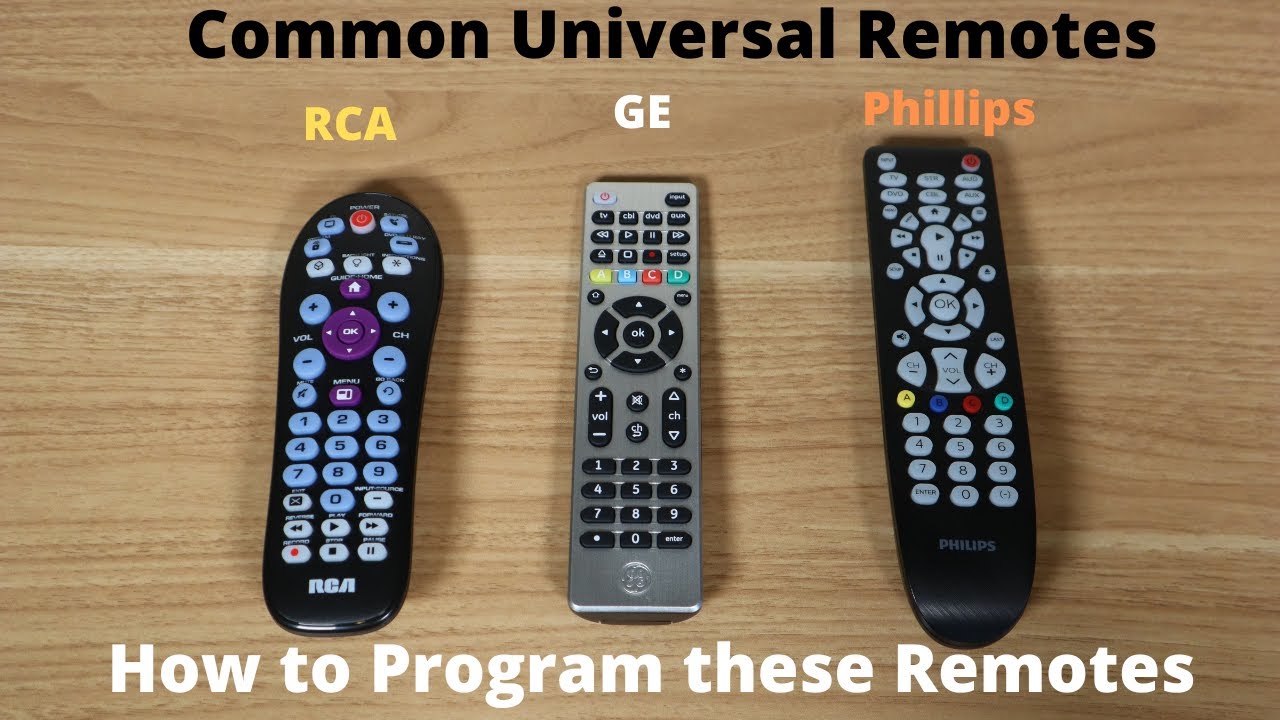
Image Source: i.ytimg.com
Why Use Just One Remote?
Having many remotes for different devices can be annoying. You might have one for your TV, one for your cable box, one for your soundbar, and so on. A universal remote fixes this. It can talk to several devices from different companies.
Here are some good reasons to use a universal remote:
- Less Clutter: You get rid of extra remotes on your table.
- Simple Control: You use one remote for everything. This makes turning on the TV, changing channels, and adjusting sound much faster.
- Replaces Lost Remotes: If you lose your original Hisense remote, a universal one can take its place.
- Easier Setup: Once set up, you don’t have to find the right remote every time you want to do something simple like change the volume.
What You Need Before You Start
Before you try to connect your universal remote to your Hisense TV, make sure you have these things ready:
- Your universal remote.
- Fresh batteries for the remote.
- Your Hisense TV, plugged in and turned on.
- The user manual that came with your universal remote. This book often has a list of
Hisense TV universal remote codes. - Access to the internet, just in case you need to look up codes or steps online.
Grasping Universal Remotes
Universal remotes work by sending special signals. Think of it like sending a secret message to your TV or other device. Each device, like your Hisense TV, understands only certain messages. These messages are linked to numbers called codes.
Your universal remote has a list of these codes inside it or in its manual. When you set up the remote for your Hisense TV, you tell the remote which code belongs to the TV. Once the remote knows the code, it can send the right signals to make the TV do things like turn on, change the channel, or change the volume.
Sometimes, finding the exact code for your specific Hisense TV and your specific universal remote can take a few tries. That’s normal. Keep trying the codes listed for Hisense.
Deciphering Remote Codes
Remote codes are like a special language your remote and TV use to talk. For your program universal remote for Hisense, you need the code that your universal remote understands and that your Hisense TV responds to.
Where can you find these important Hisense TV universal remote codes?
- Your Universal Remote’s Manual: This is the best place to start. Look for a section with a list of codes, usually sorted by TV brand. Find “Hisense” and look at the numbers listed there.
- The Remote Company’s Website: Many companies that make universal remotes have websites. You can often go there, pick your remote model, and find updated code lists online. This is good if you lost your manual or if the codes in the book don’t work. Searching their site for “Hisense codes” or “codes for Hisense TV” usually works.
- Online Code Databases: Websites exist that collect universal remote codes for many brands and devices. A quick search for “universal remote codes Hisense” can lead you to these sites. Be careful to use codes meant for your specific universal remote brand (like GE, One For All, Phillips) as codes can differ between remote makers.
You might find more than one code for Hisense. This is because Hisense makes many different TV models. You might need to try several codes from the list until you find the one that works for your TV.
Connecting by Code Number
This is the most common way to setup universal remote Hisense. It involves putting a specific code number into the universal remote.
Follow these steps carefully:
Step 1: Turn on Your TV
Make sure your Hisense TV is on. This helps you know right away if the remote starts working after you put in a code.
Step 2: Find the Setup Button
Look on your universal remote for a button that says “Setup,” “Program,” “Code Set,” or something similar. Press and hold this button.
The remote’s light (often red) should turn on and stay on. This means the remote is ready to learn or be programmed. Keep holding the button until the light stays solid.
Step 3: Select the Device Type
While still in setup mode (light is on), press the button on the remote that matches the device you want to control. For a TV, this button usually says “TV.” Press and release the “TV” button.
The light on the remote might blink once, but it should then stay solid again. This tells the remote you are about to program it for a TV.
Step 4: Enter the Code
Now, use the number pad on the universal remote to enter the Hisense TV universal remote codes you found. These codes are usually 3, 4, or 5 digits long, depending on your remote model.
Enter the first code from your list for Hisense. As you press each number, the light on the remote might blink. After you enter the last digit, the light should blink rapidly or turn off. This means the remote accepted the code.
Step 5: Test the Remote
Point the universal remote at your Hisense TV. Try pressing a button, like “Power,” “Volume Up,” or “Channel Up.”
- If it works: Great! The code you entered is correct. You have linked your universal remote to your Hisense TV. You might want to try a few more buttons to make sure everything works right.
- If it does not work: Don’t worry. The first code you tried wasn’t the right one for your specific TV. Go back to Step 2 and try the next code on your list for Hisense. You might need to try all the codes listed for Hisense before you find the right one.
Keep trying codes until your remote controls the TV. This process is how you how to program universal remote for Hisense TV.
Connecting Using Code Search
What if you lost your manual? What if none of the Hisense TV universal remote codes you find seem to work? Most universal remotes have a feature called “code search.” This method makes the remote search for the right code by sending out different signals until the TV responds.
Here’s how to use the universal remote code search Hisense method:
Step 1: Turn on Your TV
Make sure your Hisense TV is on and ready.
Step 2: Start the Search
Look for the “Setup,” “Program,” or “Code Set” button on your universal remote. Press and hold it until the light on the remote turns on and stays solid.
Then, press and release the “TV” button (or the button for the device you want to control). The light should still be solid.
Now, press the “Power” button (or another button like “Channel Up” or “Volume Up”). Some remotes require you to press “Power” to start the search, while others might use “Channel Up.” Check your remote’s manual if you’re unsure. After pressing the button, the light on the remote should start blinking slowly. This means it’s searching.
Step 3: Wait for the TV to Turn Off
Point the remote at your Hisense TV. The remote is now sending out many different codes, one after another. Watch your TV closely.
When your Hisense TV suddenly turns off, it means the remote just sent the correct code! As soon as the TV turns off, immediately press a button to “lock” that code into the remote. This button is often the “Setup,” “Program,” or “Code Set” button again. On some remotes, pressing “Enter” or “Stop” does this. You need to press the lock button quickly after the TV turns off, before the remote sends the next code.
Step 4: Lock the Code
Press the designated button (like “Setup,” “Program,” or “Enter”) right after the TV turns off. The light on the remote should blink quickly and then turn off. This tells you the remote has saved the code it just found.
Step 5: Test the Remote
Turn your Hisense TV back on (you might need to use the original Hisense remote or the power button on the TV itself for this first time if the universal remote’s power button doesn’t work yet).
Now, point the universal remote at the TV. Try pressing “Volume Up,” “Channel Down,” and “Power.” If these buttons work, the code search was successful, and your remote is now set up for your Hisense TV.
If the remote doesn’t work, it might mean you didn’t lock the code fast enough, or the search didn’t find a working code. You can try the code search method again.
Connecting Specific Remote Brands to Hisense
While the general steps above work for many universal remotes, some popular brands might have slightly different buttons or steps. Let’s look at some common ones.
Connecting a GE Remote to Hisense
GE universal remotes are widely used. To connect a GE universal remote Hisense TV, you will likely use the direct code entry method.
Here are the typical steps for a GE universal remote:
- Turn on your Hisense TV.
- Press and hold the “Setup” button on the GE remote until the red light stays on.
- Press the “TV” button on the GE remote. The light might blink, then stay solid.
- Enter the 3-, 4-, or 5-digit code for Hisense from your GE remote manual or GE’s website.
- After entering the code, the light should turn off.
- Point the GE remote at your Hisense TV and test buttons like “Power” and “Volume.”
- If it doesn’t work, try the next code for Hisense in your GE list.
- If codes don’t work, GE remotes also have a code search function. Check your GE manual for how to do the search method with your specific remote model.
Remember to use Hisense TV universal remote codes specifically meant for GE remotes.
Connecting a One For All Remote to Hisense
One For All is another popular universal remote brand. They often have a “SimpleSet” feature or require direct code entry using One For All remote codes Hisense. They also have a good online code finder.
Here are the general steps for a One For All remote:
- Turn on your Hisense TV.
- Press and hold the “Magic” button (or “Setup”) until the red light blinks twice and stays on.
- Press the “TV” button on the One For All remote.
- Enter the 4-digit code for Hisense from your One For All manual or their website’s code checker.
- The light should blink twice after entering the code.
- Point the One For All remote at your Hisense TV and test buttons like “Power” and “Volume.”
- If it works, you are done. If not, try the next
One For All remote codes Hisensefrom your list. - One For All remotes also have a learning feature and a code search function if code entry doesn’t work. Look in your One For All manual for these advanced methods. Their website is a great resource for finding specific
One For All remote codes Hisense.
Connecting a Phillips Remote to Hisense
Phillips universal remotes also use code entry or search methods. To setup universal remote Hisense with a Phillips remote, you’ll follow steps similar to the general guide.
Here are the typical steps for a Phillips universal remote:
- Turn on your Hisense TV.
- Find the “Setup” or “Code Search” button on the Phillips remote. Press and hold it until the light stays on.
- Press the “TV” button. The light should stay on.
- Enter the code for Hisense from your Phillips remote manual. Phillips codes are often 4 digits.
- The light should turn off after entering the code.
- Point the Phillips remote at the Hisense TV and test “Power” and “Volume.”
- If it works, great. If not, try other
Phillips universal remote Hisensecodes listed in your manual. - Phillips remotes also have a code search method. Check your specific Phillips manual for how to perform the universal remote code search Hisense process with your remote model.
Always use the Phillips universal remote Hisense codes provided by Phillips, as codes are specific to the remote maker.
What If It Doesn’t Work?
Sometimes, connecting your universal remote to your Hisense TV can be tricky. If the steps above don’t work right away, don’t get frustrated. Here are some things to check and try:
Check the Batteries
This sounds simple, but dead or weak batteries are a very common reason for remotes not working. Put fresh batteries in your universal remote. Make sure they are put in the right way (+ and – ends matched correctly).
Try Another Code
Hisense makes many TV models. The first Hisense TV universal remote codes you try might not be the right one for your exact TV. Go back to your code list and try the next code listed for Hisense TVs. Repeat the direct code entry steps for each code.
Use the Code Search Method
If none of the direct codes work, the universal remote code search Hisense method is your next best bet. It lets the remote find the code itself. Follow the steps for code search described earlier in this guide.
Read the Remote’s Manual
Every universal remote is a little different. The buttons used for setup or search might have different names. Your remote’s manual has the exact steps for your specific model. Find it and follow its instructions carefully. If you lost the manual, look for it online on the remote company’s website.
Search Online for Your Specific Remote and TV
Do an online search like “program [Your Remote Brand] remote for Hisense TV” or “[Your Remote Brand] universal remote Hisense TV codes“. This can sometimes give you tips or codes specific to your exact remote model and Hisense TV combination.
Make Sure You’re Pointing Correctly
Universal remotes use infrared light, which needs a clear path. Make sure you are pointing the remote directly at the front of your Hisense TV and that nothing is blocking the signal (like furniture or objects). Be reasonably close to the TV when setting it up and testing.
Try the Setup Process Again
Sometimes repeating the setup process from the beginning can fix issues. Maybe a step was missed the first time.
Contact the Remote Manufacturer
If you have tried everything and your universal remote still won’t connect to your Hisense TV, contact the customer support for the company that made your universal remote. They might have more codes or specific troubleshooting steps for your situation.
Connecting a Universal Remote to a Hisense Smart TV
Setting up a Hisense Smart TV universal remote works mostly the same way as setting up for a regular Hisense TV. You will use the same code entry or code search methods to connect universal remote to Hisense.
However, there are a few extra points to keep in mind with Smart TVs:
- Basic Functions Usually Work: Power, volume, channel changing, and number pad input almost always work with a correctly programmed universal remote on a Hisense Smart TV.
- Smart Features May Vary: Dedicated buttons for specific streaming apps (like Netflix, YouTube), menu navigation for the Smart TV interface, voice commands, or special pointer functions might not work with a simple universal remote. These features often need a remote designed specifically for the Smart TV platform.
- Complex Navigation: Moving around the Smart TV’s on-screen menus or using features like a web browser might be difficult or impossible with a basic universal remote compared to the original Smart TV remote.
- Check Advanced Universal Remotes: Some higher-end universal remotes (like Logitech Harmony, though these are becoming less common) are designed to control Smart TV features and even integrate with home automation. If controlling complex Smart TV functions is important, research universal remotes specifically designed for that purpose.
For simply turning your Hisense Smart TV universal remote on/off, changing volume, and switching channels on cable/antenna, a standard universal remote programmed with the correct code works perfectly.
Tips for a Smooth Setup
- Be Patient: Finding the right code can take time. Don’t give up after trying just one code.
- Keep Manuals Safe: Store your universal remote’s manual (and your TV’s manual) in a safe place. They are very helpful if you need to reprogram later.
- Write Down the Code: Once you find a code that works for your Hisense TV, write it down and keep it with the remote or manual. This saves you time if you ever need to set it up again (like after changing batteries).
- Update Codes: If your remote is old, check the manufacturer’s website for updated
Hisense TV universal remote codes. New codes are sometimes added for newer TV models.
Table of Common Hisense Universal Remote Codes (Examples)
Here is a table with example codes you might find for Hisense TVs. Important: Use the codes listed in your specific universal remote’s manual or on its maker’s website. These are just examples to show you what the codes look like and that they vary by remote brand.
| Universal Remote Brand | Example Hisense Codes (Check Your Remote’s Manual!) | Code Length (Typical) |
|---|---|---|
| GE | 0463, 0765, 1076, 1240, 1357, 1660, 1749 | 3 or 4 digits |
| One For All | 2696, 3630, 1434, 0031, 0556, 1814, 3832 | 4 digits |
| Phillips | 1076, 0463, 0765, 1179, 1240, 1357, 1749 | 4 digits |
| RCA | 1076, 0463, 1240, 1357, 1179, 1660, 1749 | 3 or 4 digits |
| Sony | 0000, 0111, 0534 (Less common, check manual) | 4 digits |
Disclaimer: These are examples. The correct codes for your connect universal remote to Hisense will be in your remote’s specific documentation or on the manufacturer’s official website.
Putting It All Together
Connecting a universal remote to your Hisense TV is a simple process once you know the steps. You need to find the right Hisense TV universal remote codes for your specific remote model and enter them, or use the code search feature. While basic control is easy, remember that advanced Smart TV functions might not work with all universal remotes.
By following the steps in this guide, you can easily program universal remote for Hisense TV and enjoy the convenience of using just one remote for your entertainment setup. Remember to check your remote’s manual or the manufacturer’s website for the most accurate codes and instructions. Happy watching!
Common Questions
Can a universal remote control Hisense Smart TV apps?
Basic universal remotes usually control core functions like power, volume, and channel on a Hisense Smart TV universal remote. However, dedicated buttons for specific apps (like Netflix or Hulu), voice control, or complex navigation within the Smart TV menus often do not work with standard universal remotes. You typically need the original Smart TV remote or a more advanced universal remote designed for Smart platforms for these features.
Where do I find the codes for my Hisense TV?
The best place to find Hisense TV universal remote codes is in the user manual that came with your universal remote. If you don’t have the manual, check the website of the company that made your universal remote. They often have online code lookup tools or downloadable manuals. You can also search online for “universal remote codes for Hisense TV” along with the brand and model of your universal remote.
What if none of the codes listed work for my Hisense TV?
If you’ve tried all the Hisense TV universal remote codes listed in your manual or online, your next step is to use the code search function on your universal remote. This method makes the remote scan through possible codes until it finds one that turns off your Hisense TV. Check your remote’s manual for steps on how to perform a universal remote code search Hisense. If that still doesn’t work, contact the universal remote manufacturer’s customer support.
How many devices can one universal remote control?
This depends on the universal remote model. Simple ones might control 2-4 devices (like a TV, cable box, DVD player). More advanced universal remotes can control 8, 10, or even more devices, including audio systems, streaming boxes, and game consoles. The remote’s packaging or manual will tell you how many devices it can handle.
Do I need to reprogram the remote after changing batteries?
Most universal remotes store the codes you programmed even when the batteries are removed. However, some older or simpler models might lose the programming. It’s a good practice to write down the working code for your Hisense TV once you find it, in case you ever need to re-enter it after changing batteries or if the remote’s memory gets cleared.