
Do you have a Samsung Frame TV and want to make it look like a real picture frame with beautiful art? The Samsung Frame TV art mode lets you do this! Yes, you absolutely can get free digital art for Frame TV. You don’t have to buy pictures from the built-in store. You can upload art to Samsung Frame TV yourself. This post shows you the best places to find free pictures and how to put them on your screen.
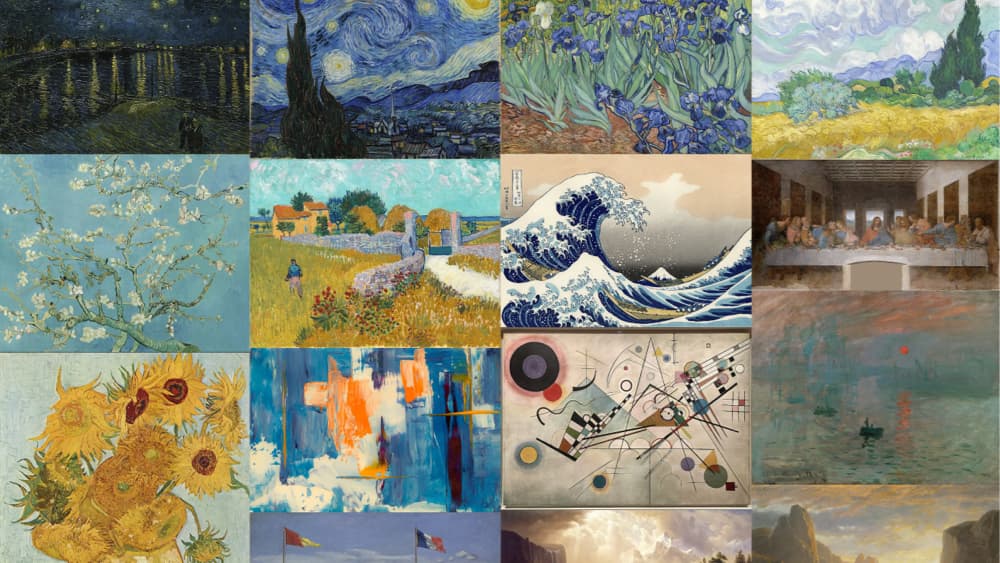
Image Source: framecrop.app
Why Free Art Is a Great Idea
Your Samsung Frame TV is special. When you are not watching shows, it can show artwork. This makes your room look nice.
Samsung has an art store. It has many beautiful pictures. But you have to pay for them. If you want to change your art often or have lots of pictures, paying all the time costs money.
Getting free digital art for Frame TV is smart.
- It saves you money.
- You get more choices.
- You can find pictures that really fit your home.
- You can even use your own photos!
Let’s look at how you can get these free pictures on your TV.
Ways to Put Art on Your Frame TV
There are two main ways to get pictures onto your TV screen.
- Using an app on your phone.
- Using a small USB stick.
Both ways let you upload art to Samsung Frame TV. You just need the picture files ready.
Accessing Art with Your Phone
One easy way is using an app called SmartThings. Most people with a Samsung TV use this app.
Using the SmartThings App
The SmartThings app Frame TV art feature makes it simple.
Here are the steps:
- First, get the SmartThings app on your phone or tablet.
- Make sure your phone and TV are on the same home Wi-Fi network.
- Open the SmartThings app.
- Find your Frame TV in the app. Tap on it.
- Look for the ‘Art Mode’ option. Tap on it.
- You will see different choices. Look for something like ‘Add Your Photos’ or ‘My Collection’. Tap there.
- The app will let you see pictures saved on your phone.
- Choose the pictures you want to put on your TV. You can pick one or many.
- The app will ask if you want to add a border or how the picture should look. Pick what you like.
- Tap ‘Set’ or ‘Send to TV’.
- The pictures will go from your phone to your TV. They will show up in the ‘My Collection’ part of the Art Mode on your TV.
This way is very good for putting your own pictures (“Frame TV custom photos”) on the screen. It’s also good if you find art on your phone and want to quickly send it to the TV.
Using a Little Stick (USB) for Art
Another good way to add art is by using a USB stick. This is helpful if you have many pictures on a computer. It’s also good if the pictures are very big files.
Putting Art on Via USB
This method uses Frame TV USB art. You put your pictures on a USB stick first.
Here are the steps:
- Find a USB stick. It does not need to be very big.
- Get the free art pictures you want. Save them on your computer.
- Copy these picture files from your computer to the USB stick.
- Make sure the TV is on. Find the USB port on your TV. It is usually on the back or side.
- Carefully put the USB stick into the TV’s USB port.
- Your TV might show a message about the USB stick.
- Using your TV remote, go to the Art Mode.
- Look for a menu option that says ‘My Collection’ or ‘Add Photos’.
- Inside ‘My Collection’, look for an option to add art from a USB device. It might show the USB stick as a source.
- Browse the pictures on the USB stick using your TV remote.
- Select the pictures you want to save to your TV’s Art Mode memory.
- Choose ‘Save’ or ‘Add’.
- The TV will copy the pictures from the USB stick to its own memory.
- Once the pictures are saved, you can take the USB stick out. The pictures are now on your TV and will show in your Art Mode collection.
This Frame TV USB art method is good for adding many pictures at once. It’s also good if the pictures are on a computer and not on your phone.
Where to Find Free Pictures for Your TV
Now that you know how to put pictures on your TV, let’s talk about where to find free digital art for Frame TV. There are many great Frame TV art sources.
Free Pictures From History (Public Domain Art)
Did you know that old artwork is often free for anyone to use? This is called public domain art Frame TV. It means the art is very old, and no one owns the rights to it anymore.
You can find amazing paintings, photos, maps, and old pictures this way. Many big museums and libraries have websites. They show their collections online. Some even let you download high-quality copies of their public domain art Frame TV for free.
Here are some places to look for public domain art Frame TV:
- Big Museum Websites: Check out the websites of famous museums like The Met (Metropolitan Museum of Art), the National Gallery of Art, or the Rijksmuseum. Many have sections with open access or public domain art. Search their sites for terms like “open access,” “public domain,” or “free download.” You can find classic paintings, drawings, and old photos.
- Library and Archive Websites: Places like the U.S. Library of Congress or the Internet Archive have huge collections of old photos, posters, and illustrations. These are often in the public domain.
- Specific Public Domain Websites: There are websites built just for sharing public domain pictures. They collect art from different places. Searching for “public domain images” can help you find these sites.
When using public domain art, you don’t need to worry about asking for permission. It’s free for everyone to use, even on your TV!
Websites With Free Art
Besides old public domain art, many websites offer free pictures you can download. These are great Frame TV art sources.
Here are types of websites to look for Websites for free Frame TV art:
- Stock Photo Sites (with free sections): Some websites that usually sell photos have a section with free pictures. Look for parts labeled “free photos” or “free images.” You can find nature photos, abstract pictures, and everyday scenes.
- Websites Just for Free Images: There are sites made just for sharing free pictures. People upload their photos or art for others to use. Check sites like Unsplash, Pexels, and Pixabay. These sites often have modern photos perfect for a changing art display.
- Sites with Creative Commons Art: Some artists share their work with special rules called Creative Commons licenses. These rules often let you use the art for free, but you might need to say who the artist is. Always check the simple rules for each picture.
- Digital Art Communities: Some online groups where artists share their work might have sections with free downloads or art specifically meant for things like TV backgrounds.
- Wallpaper Websites: Many websites offer free wallpapers for computers or phones. Some of these pictures can look great on your Frame TV. Just make sure they are high quality.
When you find art on these Websites for free Frame TV art, you usually click a button to download free Frame TV art. It saves the picture file to your computer or phone. Then you can use the SmartThings app or a USB stick to put it on your TV.
Your Own Pictures
Don’t forget about your own photos! Your Frame TV custom photos can make the display very special.
- Family Pictures: Photos of your family, friends, or pets.
- Travel Photos: Pictures from trips you have taken.
- Nature Photos: Pictures of landscapes, flowers, or animals you took yourself.
- Art You Made: If you paint or draw, you can take a picture of your work and show it.
Using your Frame TV custom photos is a wonderful way to personalize your space. You already own these pictures, so they are completely free!
Making Pictures Look Good on Your TV
Frame TVs have a certain shape. It’s wide, like movie screens (this is called a 16:9 aspect ratio). For your free art to look best, it helps if the pictures are the right shape and size.
Getting the Shape Right
- Your Frame TV is wider than it is tall.
- If your picture is a tall rectangle (like from a phone), it might have black bars on the sides on your TV.
- If your picture is a square, it might have black bars on the sides too.
- Pictures that are wide rectangles (like landscape photos) often fit the screen best without black bars.
You don’t have to use only wide pictures. The Frame TV and the SmartThings app let you add different border styles. These borders fill the black space around pictures that are not the 16:9 shape. You can make the borders white, black, or even look like a mat board around a painting. This makes pictures of any shape look nice.
Getting the Size and Quality Right
- Pictures need to be big enough so they don’t look fuzzy on a large TV screen.
- Look for pictures that are high resolution. This means they have lots of tiny dots (pixels).
- A good size to look for is at least 1920 pixels wide by 1080 pixels tall. Bigger is often better, like 3840 pixels wide by 2160 pixels tall (called 4K resolution, which matches many Frame TVs).
- When you download free Frame TV art, try to get the largest size available.
- If you are using your own photos, use the originals from your camera or phone.
Getting the File Type Right
- The Frame TV works best with JPG files.
- Most pictures you download free Frame TV art online will be JPGs.
- Your own photos from a phone or camera are usually JPGs.
- If you find art in a different format, like PNG, it might work too. But JPG is the most common and safest type to use.
You can use simple photo programs on your computer or phone, or even free online tools, to crop pictures to the right shape or change their size and file type if needed. But often, you can skip this step and let the TV or SmartThings app handle it, using borders for pictures that don’t fit perfectly.
Taking Care of Your Art Collection
Once you start adding free art to your Samsung Frame TV art mode, you will build a collection.
Managing Your Saved Art
- Using the TV remote or the SmartThings app, you can see all the pictures you have saved on the TV.
- You can select one picture to show all the time.
- Or, you can select many pictures and make a slideshow. The TV will change the picture every few minutes or hours, depending on your settings.
- If you want to remove a picture, you can delete it from the TV’s collection.
Changing Art Mode Settings
- You can change how bright the art looks. This is helpful so the TV looks like a real picture and not a glowing screen.
- You can change the color tone to make the art look warmer or cooler.
- You can set how long a slideshow picture stays on the screen before changing.
- You can set the TV to turn off completely when no one is in the room (using a motion sensor).
These settings help your free digital art for Frame TV look its best and save power.
Phone App or USB Stick?
Which way should you use to upload art to Samsung Frame TV?
| Method | Simple Explanation | Good For | Maybe Not Good For |
|---|---|---|---|
| SmartThings App | Using your phone or tablet | Pictures already on your phone; adding just a few. | Adding lots of pictures at once; pictures only on computer. |
| USB Stick | Using a small stick you plug in | Pictures on your computer; adding many pictures. | Need a computer and USB stick; adding one quick picture from phone. |
Both methods work well for adding free digital art for Frame TV. Pick the one that is easiest for you based on where your pictures are saved.
Tips for Picking Great Art
Finding free digital art for Frame TV is fun! Here are some tips:
- Think About Your Room: What colors are in your room? What style is your furniture? Choose art that matches or adds a nice contrast.
- Pick What You Like: It’s your TV and your home. Choose art that makes you happy!
- Look for Good Quality: As we talked about, high-resolution pictures look much better. Zoom in on the picture on your computer before you download it to see if it looks clear.
- Try Different Styles: Don’t just pick one type of art. Try photos, paintings, drawings, or digital art. Change it up to keep your TV looking fresh.
- Consider the Theme: You could have different collections for seasons (snowy scenes for winter, flowers for spring), holidays, or moods.
Finding good Frame TV art sources takes a little looking, but it’s worth it for the free beautiful art you get.
If Art Doesn’t Show Up
Sometimes you might try to add art, and it doesn’t show up on your TV. Here are simple things to check:
- Is it a JPG? Make sure the file is a JPG picture. Other types might not work.
- Did you save it to the TV? If you used the USB stick, did you go into the Art Mode menu and choose to save the pictures from the USB to the TV’s memory? Putting the USB in is the first step; saving from the USB is the next step.
- Is the USB stick working? Try the USB stick in a computer to see if the pictures are there.
- Is the TV in Art Mode? Make sure the TV is in the special Art Mode, not just turned off or showing a black screen.
- Is the SmartThings app connected? If using the app, make sure your phone and TV are connected in the app and on the same Wi-Fi.
Most times, it’s a simple thing like the file type or forgetting to save the pictures from the USB stick to the TV.
More on Finding Free Art Sources
Let’s dive a little deeper into specific places to download free Frame TV art.
Expanding Your Search for Public Domain Art
Besides major museums, many smaller galleries, university collections, and government archives offer public domain works.
- University Art Museums: Many universities have their own art collections. Check their websites for online galleries and information on usage rights.
- National Archives: Places like the UK’s National Archives or similar bodies in other countries often have historical photos, maps, and documents that are in the public domain.
- Digital Libraries: Projects like the Biodiversity Heritage Library have public domain illustrations of plants and animals. The NOAA Photo Library has public domain weather and nature photos.
When looking for public domain art Frame TV, be creative in your search. Think about the types of images you like and where old versions might be stored and digitized.
More Websites with Free Art
The world of free images is vast!
- Abstract & Digital Art: Some websites specialize in digital art or abstract designs that are offered for free. Look for artists who share their work under permissive licenses.
- Texture and Background Sites: Sites offering free textures or backgrounds for graphic design can sometimes have images that look great as abstract art on a Frame TV.
- Checking Licenses: While many sites say “free,” it’s good practice to quickly check the license. Most free stock photo sites use licenses like “Creative Commons Zero (CC0),” which means you can use the pictures for anything you want, even without saying who took them. Public domain is similar – no rules. If a site uses a different license, make sure it allows use on a display like your TV.
Remember, the key is to download free Frame TV art in the best quality possible from these Websites for free Frame TV art.
Summing Up How to Get Free Art
Getting free digital art for Frame TV is easy and gives you so many options.
You can use the Samsung Frame TV art mode with pictures you find yourself.
- Use the SmartThings app Frame TV art feature to send pictures from your phone.
- Use the Frame TV USB art method to copy pictures from a computer using a USB stick.
You can find free pictures from:
- Public domain art Frame TV found on museum, library, and archive websites (old, free to use).
- Websites for free Frame TV art like free stock photo sites or sites specifically for free digital art.
- Your own Frame TV custom photos.
Make sure the pictures are JPGs and are high quality for the best look. While matching the 16:9 shape is nice, the TV can add borders to make other shapes look good too.
With so many Frame TV art sources available, you can change your TV’s look whenever you want, without spending money. Enjoy making your Frame TV a beautiful part of your home decor!
Questions People Ask
Here are some quick answers to common questions about getting free art on your Frame TV.
Q: Can I use any picture I find online?
A: Not always. You need to make sure the picture is free to use. Look for art that is in the public domain or offered under a free license (like Creative Commons Zero). Pictures on regular websites are usually owned by someone and you need their OK to use them. Stick to the Frame TV art sources mentioned that specifically offer free art.
Q: Do I need the SmartThings app?
A: No, you do not need the SmartThings app. You can also use the Frame TV USB art method to put pictures on your TV from a USB stick. The app is just one way to do it.
Q: How many pictures can I put on the TV?
A: The Frame TV has space to save many pictures in its Art Mode collection. The exact number depends on the size of the picture files, but it can hold hundreds of images.
Q: Will free pictures look as good as the art Samsung sells?
A: Yes, if you find high-quality free digital art for Frame TV. The look depends on the quality of the picture file you download free Frame TV art, not whether you paid for it. High-resolution public domain scans or good photos from free sites will look great.
Q: Where is the easiest place to find old paintings for free?
A: The best place to look for old paintings for free is on the websites of large art museums that offer public domain art Frame TV downloads. Search their online collections for open access or public domain sections.