
You can get Floracing on your TV in several ways. The simplest is often using the Floracing TV app if you have a smart TV or a streaming device like Roku, Fire Stick, or Apple TV. You can also cast the race from your phone or computer to your TV, or connect a computer directly using an HDMI cable. You need a Floracing subscription to watch races. This guide will help you put Floracing right on your big screen.
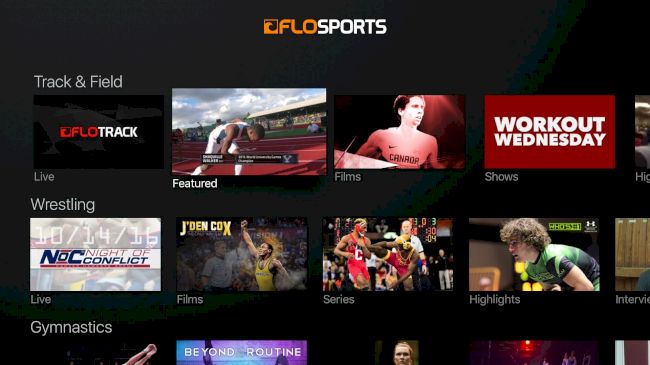
Image Source: d2779tscntxxsw.cloudfront.net
Getting Started with Floracing on Your TV
Watching Floracing on your TV is a great way to see the action up close. You need a few things first.
Heres what you need:
- A TV. Most TVs today work.
- A way to connect to the internet. This is often Wi-Fi in your home.
- A device to watch Floracing on. This could be a smart TV, a streaming box, a phone, or a computer.
- A Floracing account. You need to sign up and pay for a plan. This is called a Floracing subscription.
Once you have these, you can pick the best way to get Floracing onto your big TV screen. We will show you different ways to do this. Each way is simple.
What is Floracing?
Floracing is a special online service. It shows live and past dirt track races. These races happen across the country. If you love sprint cars, late models, and other dirt track racing, Floracing has a lot to watch. You pay a fee to watch. This fee is the Floracing subscription cost. It lets you stream races right to your devices.
Ways to Watch Floracing on Your TV
There are many ways to watch Floracing on your TV. The best way for you depends on what devices you have. We will cover the most common ways.
Here are the main ways:
- Using a dedicated Floracing TV app on a smart TV or streaming device.
- Using a streaming stick or box like Roku, Fire Stick, or Apple TV.
- Sending the race from your phone or computer to your TV. This is called casting or mirroring.
- Plugging your computer into your TV with a cable.
Each way gets the racing action onto your TV screen. Let’s look at each one closely.
Using the Floracing TV App
The easiest way for many people is using the Floracing TV app. Many TVs now have built-in apps. Devices like Roku or Fire Stick also use apps. Floracing has created an app just for watching their races.
Finding the Floracing App
You need to find the Floracing app on your device.
Here is how to find the app:
- Go to the app store on your smart TV.
- Go to the app store on your Roku.
- Go to the app store on your Fire Stick.
- Go to the App Store on your Apple TV.
Search for “Floracing”. The official app will show up. It might just say “FloSports” or “Floracing”. Floracing is part of FloSports.
Installing the App
Once you find the app, you need to put it on your device.
Follow these steps to install:
- Click on the Floracing app icon in the store.
- Look for a button that says “Get”, “Download”, or “Install”.
- Click this button.
- The app will download to your device.
- It will then install itself.
This puts the Floracing TV app onto your smart TV or streaming device. Now you can open it and watch.
Opening the App and Logging In
After the app is installed, you need to open it. Then you need to sign in to your Floracing account.
How to open and sign in:
- Find the Floracing app icon on your home screen.
- Click on the icon to open the app.
- When the app opens, it will ask you to log in.
- Use the email and password you used when you got your Floracing subscription.
- Type your email.
- Type your password.
- Click the “Log In” button.
Now you are logged into the Floracing app. You can browse races and start watching. This is a direct way to watch Floracing on your TV. It uses the official Floracing TV app.
Watching Floracing on Roku
Roku is a very popular device. You can easily watch Floracing on Roku. Roku uses apps for different channels and services. Floracing has an app for Roku.
Getting the Floracing App on Roku
You need to add the Floracing channel (app) to your Roku.
Here is how to get the app on Roku:
- Turn on your TV and Roku.
- Go to the Roku home screen.
- Find “Streaming Channels” or “Search” in the menu.
- Click on “Streaming Channels”.
- Go to “Search Channels”.
- Type “FloSports” or “Floracing” using the on-screen keyboard.
- The FloSports channel app should appear. Remember, Floracing is part of FloSports.
- Click on the FloSports channel app.
- Click the “Add channel” button.
- The channel will be added to your Roku.
The FloSports app, which includes Floracing, is now on your Roku device.
Watching Races on Roku
Once the app is on your Roku, open it.
Steps to watch on Roku:
- Go back to the Roku home screen.
- Find the FloSports channel icon in your list of channels. It might be at the bottom.
- Click on the FloSports icon to open the app.
- Log in with your Floracing account details (email and password).
- Browse the different sports. Find Floracing.
- Choose the race you want to watch.
- Click on the race. It should start playing on your TV.
This lets you watch Floracing on Roku directly. It is a smooth way to stream Floracing live and watch past events.
Floracing Fire Stick Guide
Amazon Fire Stick is another popular streaming device. You can also get Floracing on Fire Stick. It works much like Roku, using apps.
Finding the Floracing App on Fire Stick
You need to find the Floracing app in the Amazon Appstore on your Fire Stick.
How to find the app on Fire Stick:
- Turn on your TV and Fire Stick.
- Go to the Fire Stick home screen.
- Use the search icon (magnifying glass). It is usually at the top.
- Type “FloSports” or “Floracing” using the on-screen keyboard.
- Look for the FloSports app in the search results.
- Click on the FloSports app icon.
Putting the App on Fire Stick
Now you need to download and install the app.
Steps to get the app on Fire Stick:
- After clicking on the app icon, you will see the app page.
- Click the “Get” or “Download” button.
- The app will download to your Fire Stick.
- It will install automatically.
- The button might change to “Open”.
The FloSports app, covering Floracing, is now ready on your Fire Stick.
Watching Races Using Fire Stick
Open the app on your Fire Stick to watch.
How to watch using Fire Stick:
- Go back to the Fire Stick home screen.
- Find the FloSports app in your list of apps. You might find it under “Your Apps & Channels”.
- Click on the FloSports icon to open the app.
- Sign in with your Floracing account (email and password).
- Navigate within the app to find the Floracing section.
- Select the race you want to view.
- Click on it, and the race will begin on your TV.
Getting Floracing on Fire Stick is simple using the official app. It is a direct way to enjoy racing.
Floracing Apple TV Steps
If you have an Apple TV streaming box, you can also watch Floracing. Apple TV uses the App Store, just like iPhones or iPads.
Getting the Floracing App on Apple TV
You need to download the FloSports app from the Apple TV App Store.
Steps to get the app on Apple TV:
- Turn on your TV and Apple TV.
- Go to the Apple TV home screen.
- Open the App Store icon.
- Go to the Search tab in the App Store.
- Type “FloSports” using the on-screen keyboard or voice search.
- Find the FloSports app in the search results.
- Click on the app icon.
- Click the “Get” button. You might need to enter your Apple ID password or use Face ID/Touch ID.
- The app will download and install on your Apple TV.
The FloSports app is now on your Apple TV. This app includes Floracing.
Watching Races on Apple TV
Open the app and log in to watch.
How to watch on Apple TV:
- Go back to the Apple TV home screen.
- Find the FloSports app icon.
- Click the icon to open the app.
- Log in using your Floracing email and password.
- Find the Floracing section within the app.
- Choose a race to watch.
- Click on the race, and it will play on your TV.
Watching Floracing Apple TV is easy once the FloSports app is installed. It provides access to all Floracing content.
Get Floracing on Smart TV
Many newer TVs are called smart TVs. They have the internet built-in. They also have their own app stores. You might be able to get Floracing on Smart TV directly.
Finding the App on Your Smart TV
Each smart TV brand is a bit different. But they all have an app store.
Common places to find the app store:
- Look for a button on your remote labeled “Smart Home,” “Apps,” or “Home.”
- Look for icons on the TV screen labeled “Apps,” “App Store,” or “Connect.”
- Common smart TV systems include Samsung Tizen, LG webOS, Android TV (Sony, Hisense, etc.), and Vizio SmartCast.
Once you find the app store, search for “FloSports” or “Floracing”.
Installing the App on Your Smart TV
Follow the steps in your TV’s app store to install.
Typical install steps:
- Select the FloSports app icon in the store.
- Click the “Install” or “Add” button.
- Wait for the app to download and install.
The FloSports app is now on your smart TV.
Watching Races on Your Smart TV
Open the app and log in to start watching.
Steps to watch on Smart TV:
- Go back to your smart TV home screen.
- Find the FloSports app icon in your list of apps.
- Click the icon to open the app.
- Log in using your Floracing account details (email and password).
- Find the Floracing races inside the FloSports app.
- Select a race to watch.
- The race will play full screen on your smart TV.
If your smart TV has an app store that includes FloSports, this is a very direct way to Get Floracing on Smart TV.
How to Cast Floracing to Your TV
Casting is another way to watch Floracing on your TV. You watch the race on your phone or computer, and you send it wirelessly to your TV. This works if you have a device like Chromecast or a TV that supports AirPlay (for Apple devices).
Casting uses your phone or computer as the control. The video streams from the internet directly to your casting device or smart TV.
Casting with Chromecast
Chromecast is a small device from Google. You plug it into your TV. It lets you send video from apps on your phone or computer to the TV.
What you need for Chromecast casting:
- A TV with an HDMI port.
- A Chromecast device plugged into the TV.
- The Google Home app on your phone or tablet (for setup).
- The FloSports app on your phone or tablet, or the FloSports website open in a Chrome browser on your computer.
- Your phone, computer, and Chromecast must be on the same Wi-Fi network.
Steps to cast from phone/tablet using FloSports app:
- Open the FloSports app on your phone or tablet.
- Find the Floracing race you want to watch.
- Start playing the race on your phone.
- Look for the Cast icon. It looks like a TV screen with a Wi-Fi signal in the corner. It might be at the top of the video player.
- Tap the Cast icon.
- A list of available casting devices will show up.
- Select your Chromecast device from the list.
- The video should stop playing on your phone and start playing on your TV via Chromecast.
- You can now use your phone to control playback (pause, play, etc.).
Steps to cast from computer using Chrome browser:
- Open the Google Chrome browser on your computer.
- Go to the FloSports website (www.flosports.tv) and log in to your Floracing account.
- Find the Floracing race you want to watch and start playing it in the browser.
- Click the three vertical dots menu in the top right corner of the Chrome browser.
- Select “Cast…” from the menu.
- A small box will appear. It will list available casting devices.
- Select your Chromecast device.
- You can choose to cast the current tab or the entire desktop. Usually, casting the tab with the video works best.
- The video should now appear on your TV via Chromecast.
This is how to cast Floracing using Chromecast. It is a good way if you do not have a compatible smart TV app or streaming stick.
Casting with AirPlay (Apple Devices)
AirPlay is a feature for Apple devices (iPhone, iPad, Mac). It lets you send video and audio wirelessly to an Apple TV or an AirPlay-compatible smart TV.
What you need for AirPlay casting:
- An iPhone, iPad, or Mac computer.
- An Apple TV box or a smart TV that supports AirPlay 2.
- The FloSports app on your iPhone/iPad or the FloSports website open on your Mac.
- Your Apple device and Apple TV/AirPlay TV must be on the same Wi-Fi network.
Steps to cast from iPhone/iPad using FloSports app:
- Open the FloSports app on your iPhone or iPad.
- Find the Floracing race you want to watch.
- Start playing the race.
- Look for the AirPlay icon. It looks like a screen with a triangle at the bottom pointing up. It might be in the video controls.
- Tap the AirPlay icon.
- A list of devices will appear.
- Select your Apple TV or AirPlay-compatible smart TV from the list.
- The video will start playing on your TV.
Steps to mirror from iPhone/iPad (if AirPlay icon isn’t in app):
If the app doesn’t have a built-in AirPlay button, you can mirror your entire screen.
- Swipe down from the top-right corner of your iPhone/iPad screen (or swipe up from the bottom on older models) to open Control Center.
- Tap the “Screen Mirroring” button. It looks like two overlapping rectangles.
- Select your Apple TV or AirPlay-compatible smart TV from the list.
- Your phone’s entire screen will appear on the TV.
- Now open the FloSports app and play the race. It will show on the TV.
- Make sure to turn your phone sideways (landscape mode) for a full-screen picture on the TV.
Steps to cast from Mac using Safari browser:
- Open the Safari browser on your Mac.
- Go to the FloSports website and log in to your Floracing account.
- Find and play the race.
- Look for the AirPlay icon in the video controls or in the Safari browser tabs.
- Click the AirPlay icon.
- Select your Apple TV or AirPlay-compatible smart TV.
- The video will start playing on your TV.
Knowing How to cast Floracing using Chromecast or AirPlay gives you more options to watch on your TV.
Connecting Phone to TV Floracing
Another way to get Floracing on your TV is by connecting your phone directly. This is not casting, but using a cable or screen mirroring.
Using Screen Mirroring (without AirPlay/Chromecast)
Some smart TVs have their own screen mirroring features. Your Android phone or tablet might also have this feature (often called Smart View, Screen Cast, MirrorShare, etc.).
What you need for screen mirroring:
- An Android phone or tablet.
- A smart TV that supports screen mirroring (like Miracast).
- Your phone and TV on the same Wi-Fi network.
Steps to connect phone to TV Floracing using mirroring:
- On your smart TV, find and turn on the screen mirroring feature. The name varies by TV brand.
- On your Android phone, open the Quick Settings menu. Swipe down from the top of the screen.
- Look for an icon like “Smart View,” “Cast,” “Screen Cast,” or “Wireless Display.” The name differs.
- Tap this icon.
- Your phone will search for nearby devices.
- Select your smart TV from the list.
- Your phone’s screen should appear on the TV.
- Now, open the FloSports app on your phone.
- Find the Floracing race and play it.
- It will show on your TV because your phone’s screen is mirrored.
- Turn your phone sideways for full screen.
This method can sometimes be less smooth than casting or using a native app.
Connecting with a Cable
For the most basic way to connect phone to TV Floracing, you can use a cable. This requires specific adapters.
What you need for cable connection:
- Your phone (iPhone or Android).
- A TV with an HDMI port.
- An HDMI cable.
- An adapter for your phone:
- For iPhone/iPad: Apple’s Lightning Digital AV Adapter.
- For Android (if supported): A USB-C to HDMI adapter or MHL adapter (check your phone’s specs).
Steps to connect phone to TV using cable:
- Plug the adapter into your phone’s charging port.
- Plug one end of the HDMI cable into the adapter.
- Plug the other end of the HDMI cable into an HDMI port on your TV. Note which HDMI port you use (HDMI 1, HDMI 2, etc.).
- Use your TV remote to change the TV input source to the HDMI port you used.
- Your phone’s screen should appear on the TV.
- Open the FloSports app on your phone.
- Play the Floracing race.
- It will show on your TV. Turn your phone sideways for full screen.
Using a cable is a reliable way to connect phone to TV Floracing, but it means your phone is tethered to the TV.
Connecting a Computer to Your TV
You can also watch Floracing on your TV by connecting a laptop or desktop computer. This is similar to using a cable with your phone, but usually easier as most computers have HDMI ports.
What you need:
- A computer (laptop or desktop).
- A TV with an HDMI port.
- An HDMI cable. (If your computer doesn’t have HDMI, you might need an adapter, like DisplayPort to HDMI or USB-C to HDMI).
Steps to connect computer to TV:
- Make sure both your computer and TV are on.
- Plug one end of the HDMI cable into the HDMI port on your computer.
- Plug the other end of the HDMI cable into an HDMI port on your TV. Note which port you use.
- Use your TV remote to change the TV input source to the HDMI port you used.
- Your computer’s screen should now appear on the TV. You might need to adjust display settings on your computer (e.g., duplicate screen, extend display).
- Open a web browser on your computer (like Chrome, Firefox, Safari, Edge).
- Go to the FloSports website (www.flosports.tv) and log in to your Floracing account.
- Find the race you want to watch.
- Play the race video in the browser. It will show on your TV screen. Make the video full screen for the best view.
Connecting a computer is a simple and direct way to watch Floracing on your TV, especially if you are already using your computer to access the FloSports website.
Floracing Supported Devices List
It is helpful to know which devices officially support the Floracing (FloSports) app. Using a supported device usually gives you the best watching experience.
Here is a list of commonly Floracing supported devices:
- Smart TVs:
- Select Samsung Smart TVs (models from 2017 and newer)
- Select LG Smart TVs (models from 2018 and newer)
- Android TV devices (found in Sony, Hisense, TCL, and other TVs)
- Streaming Sticks and Boxes:
- Roku (most recent models)
- Amazon Fire Stick / Fire TV (most recent models)
- Apple TV (4th generation and newer)
- Google Chromecast (for casting from phone/computer)
- Mobile Devices:
- iPhone and iPad (using the FloSports app)
- Android phones and tablets (using the FloSports app)
- Computers:
- Windows PCs (using a web browser)
- Mac computers (using a web browser)
This Floracing supported devices list covers the most popular ways people watch. If your device is on this list, using the official app or casting method for that device is likely your best option. Always check the app store on your specific device to confirm the FloSports app is available.
Floracing Subscription Cost Explained
To watch any racing on Floracing, you need to pay for access. This is the Floracing subscription cost. Floracing is part of the FloSports network. Your subscription gives you access to all FloSports content, not just Floracing.
Types of Subscriptions
FloSports usually offers two main types of subscriptions:
- Monthly Plan: You pay every month. This plan costs more per month but you can cancel any month.
- Annual Plan: You pay for a full year at once. This plan costs less per month when you average it out, but you must pay for the whole year upfront. It saves you money over the year if you plan to watch for a long time.
How Much It Costs
The exact Floracing subscription cost can change. It is best to check the official FloSports website for the most current prices.
As a general idea (prices are examples and may vary):
- Monthly Plan: Might be around $30 per month.
- Annual Plan: Might be around $150 per year. This works out to about $12.50 per month, saving you a lot compared to the monthly plan.
What the Cost Covers
Your Floracing subscription cost gives you access to:
- Live streams of many dirt track races.
- Past races and event replays.
- Original shows and videos about racing.
- Access on multiple devices (TV apps, website, mobile apps).
- Access to content from all FloSports channels, not just Floracing (like FloWrestling, FloGrappling, etc.).
Remember, you need an active subscription to log in to the apps or website and watch any content. The subscription is required no matter which method you use to watch on your TV (app, casting, cable).
How to Stream Floracing Live
One of the main reasons people subscribe is to stream Floracing live. This means watching the race as it happens.
What you need to stream live:
- An active Floracing subscription.
- A supported device connected to the internet (TV app, streaming stick, phone, computer).
- A good internet connection. Live video uses a lot of internet data. A fast, stable connection prevents buffering (the video stopping to load).
Steps to stream Floracing live:
- Make sure you have an active Floracing subscription.
- Choose your device (Smart TV, Roku, Fire Stick, Apple TV, phone, computer).
- Open the FloSports app on your device or go to the FloSports website on your computer.
- Log in to your Floracing account.
- Navigate to the Floracing section.
- Look for races that are happening now. They are usually marked as “LIVE”.
- Click on the live race event.
- The live stream should begin playing.
Sometimes there might be pre-race coverage before the main event starts. The stream usually begins showing content before the first race.
Tips for live streaming:
- Use a strong Wi-Fi signal. If possible, connect your streaming device or computer directly to your router with an Ethernet cable for the most stable connection.
- Close other apps or devices using a lot of internet on your network while you watch.
- Check the race schedule on the Floracing website or app beforehand so you know when the live stream starts.
Knowing How to stream Floracing live ensures you don’t miss any of the action as it unfolds.
Resolving Common Watching Issues
Sometimes you might have problems watching Floracing on your TV. Here are a few common issues and simple things to try.
Video is Choppy or Buffering
This usually means your internet connection is not fast enough or stable.
- Check your internet speed: Do an internet speed test on the device you are using or a device connected to the same network. FloSports recommends certain speeds for smooth streaming (check their website for details, but faster is always better for live video).
- Improve Wi-Fi signal: Move closer to your router. Remove things blocking the signal (walls, furniture).
- Restart your router and modem: Unplug them for 60 seconds, then plug them back in.
- Use a wired connection: Connect your streaming device or computer to your router with an Ethernet cable if possible.
- Reduce network use: Stop other devices in your home from using the internet heavily (like downloading large files, playing online games).
App Won’t Load or Crashes
The app might be having a temporary problem.
- Restart the app: Close the app completely and open it again.
- Restart your device: Turn your smart TV, Roku, Fire Stick, or Apple TV off and then on again.
- Check for app updates: Go to your device’s app store and see if there is an update for the FloSports app. Install it if there is one.
- Check for device updates: Make sure your streaming device or smart TV’s system software is up to date.
- Uninstall and reinstall the app: Remove the FloSports app from your device, then download and install it again from the app store.
Cannot Log In
This is often a password or account issue.
- Double-check email and password: Make sure you are typing them correctly. Passwords are case-sensitive (uppercase and lowercase letters matter).
- Reset password: If you forgot your password, use the “Forgot Password” link on the FloSports login page (website or app).
- Check subscription status: Log in to the FloSports website on a computer or phone browser to make sure your subscription is active and your payment method is okay.
- Contact FloSports support: If you still cannot log in after checking these things, reach out to FloSports customer support for help with your account.
Solving these common problems can help ensure you get Floracing on your TV and watch without interruption.
Choosing the Best Way for You
With many options available, which is the best way to watch Floracing on your TV?
Consider these points:
- Do you have a smart TV? Check its app store for the FloSports app. If it’s there, using the native app is often the easiest way.
- Do you have a streaming device (Roku, Fire Stick, Apple TV)? These devices are great for apps. Get the FloSports app on one of these for a smooth experience. They are specifically designed for streaming video.
- Do you prefer using your phone or computer? Casting (Chromecast, AirPlay) or connecting via HDMI cable lets you use your existing device to control the race. Casting is wireless and keeps your phone usable (though the app needs to be open). HDMI is a direct connection.
- What is your technical comfort level? Using a dedicated app is usually the simplest. Casting or cable connections might require a few more steps.
For most people with a modern TV setup, using the Floracing TV app on a smart TV or streaming stick (Roku, Fire Stick, Apple TV) is the most convenient and provides the best video quality.
Summary of Getting Floracing on TV
Getting Floracing on your TV is simple with the right device and a subscription.
Here’s a quick recap of the main ways:
| Method | What You Need | Pros | Cons |
|---|---|---|---|
| Floracing TV App | Smart TV, Roku, Fire Stick, or Apple TV; Floracing sub | Easy to use, designed for TV, good quality | Need compatible device |
| Watch Floracing on Roku | Roku device; Floracing sub | Dedicated app, good performance | Need a Roku device |
| Floracing Fire Stick | Fire Stick device; Floracing sub | Dedicated app, easy search | Need a Fire Stick device |
| Floracing Apple TV | Apple TV device; Floracing sub | Dedicated app, integrates with Apple | Need an Apple TV device |
| Get Floracing on Smart TV | Compatible Smart TV; Floracing sub | No extra box needed | App might not be available on all models |
| How to Cast Floracing | Phone/Computer, Casting device (Chromecast/AirPlay), Floracing sub | Wireless, uses devices you have | Quality can vary, requires phone/computer on |
| Connect Phone to TV | Phone, Adapter, HDMI cable, Floracing sub | Direct connection, simple setup | Phone is tethered, needs adapter |
| Connect Computer to TV | Computer, HDMI cable, Floracing sub | Direct connection, large screen | Needs a computer near the TV |
No matter how you choose to watch, the most important step is having an active Floracing subscription. This gives you the key to unlock all the racing content.
By following this guide, you should be able to get Floracing on your TV easily and start enjoying live and on-demand dirt track racing on the big screen. Pick the method that fits your setup best and get ready for race day!
Frequently Asked Questions (FAQ)
Many people have simple questions about watching Floracing on TV. Here are answers to some common ones.
h5 Is Floracing part of a bigger service?
Yes, Floracing is one of many sports channels offered by FloSports. When you subscribe to Floracing, you get access to all of FloSports.
h5 Can I watch Floracing without a subscription?
No, you need a paid Floracing subscription (part of a FloSports subscription) to watch live races and most content. There might be some free videos, but not live events.
h5 How fast does my internet need to be?
FloSports recommends a certain internet speed for smooth HD streaming. Check their official website for the latest recommended speed. Generally, faster and more stable is better, especially for live events. A speed of at least 5-10 Mbps is often okay for one stream, but more is better if other people are using the internet or you want high quality.
h5 Can I watch Floracing on more than one TV at the same time?
FloSports allows watching on multiple devices at once, but there might be a limit. Check the terms of your subscription on the FloSports website for details on simultaneous streams.
h5 Is the Floracing app the same as the FloSports app?
Yes, Floracing content is found within the FloSports app. You download the FloSports app, and then you can find Floracing content inside it.
h5 Can I watch Floracing on my gaming console like PlayStation or Xbox?
As of now, there is generally no official FloSports app for gaming consoles like PlayStation or Xbox. You would need to use one of the methods above, like casting from a phone/computer or connecting a computer via HDMI, if the console’s browser supports the website well enough (which is not always guaranteed for live video). Using a dedicated streaming device or smart TV app is usually better. Check the official Floracing supported devices list on their site for the most current information.
h5 What if my smart TV doesn’t have the FloSports app?
If your smart TV’s app store doesn’t have the FloSports app, you can use a streaming stick (Roku, Fire Stick, Apple TV), use a casting device (Chromecast, AirPlay), or connect a computer with an HDMI cable to watch Floracing on that TV.
h5 Can I watch past races?
Yes, your Floracing subscription usually lets you watch replays of past races on demand through the app or website.
h5 How do I cancel my Floracing subscription?
You usually need to log in to your account on the FloSports website (www.flosports.tv) to manage or cancel your subscription. Look for account settings or subscription details. Make sure to check the terms for cancellation policies.
Getting your favorite dirt track racing on the big screen is exciting! With these steps and tips, you should be watching Floracing on your TV in no time.