
Yes, you can program your Dish Network remote to control your TV even if you don’t have the specific code for your television brand. This is possible through methods like the automatic code search or a manual search function built into most Dish remotes. These methods scan through a list of codes stored in the remote itself until they find one that works for your TV, meaning you don’t need to find Dish remote TV code lists or remember a specific number.
So, you’ve got your Dish remote, your TV, but no TV code. Maybe you lost the manual, or the code list online didn’t work. Don’t worry. Programming your Dish remote to turn your TV on and off, change volume, and switch inputs is very possible without needing that specific three, four, or five-digit number. We will show you how to get your Dish Network remote setup without TV code information by using simple built-in features.
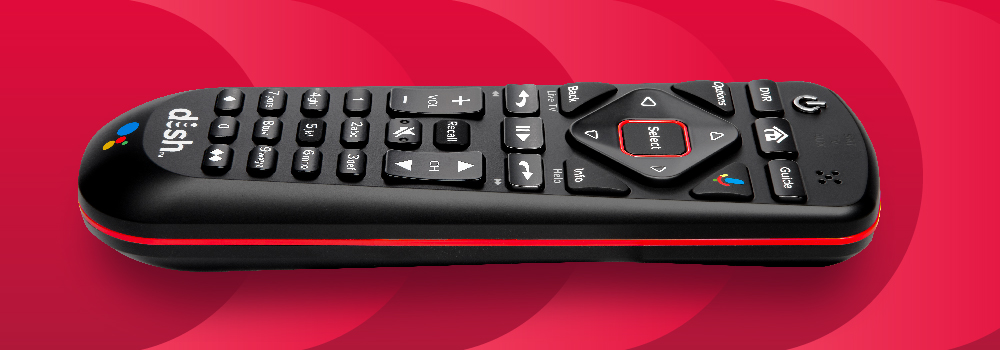
Image Source: www.usdish.com
The Goal: Remote Control Freedom
Why program your Dish remote to your TV? Simple. It lets you use just one remote for everything. You can turn the TV on, turn the TV off, change the volume, and even switch inputs using your Dish remote. This means less clutter on your coffee table and easier control of your entertainment system. Losing the TV code shouldn’t stop you from enjoying this convenience.
Two Main Ways Without a Code
There are two main ways to program your Dish remote to your TV when you don’t know the code:
- Auto Code Search: The remote automatically tries codes until it finds one that works.
- Manual Code Search: You tell the remote to try codes one by one or in blocks, and you stop it when your TV responds.
Both methods are a form of Dish remote auto code search or programmed scanning. They save you the trouble of looking up codes. These methods cover the primary Dish remote programming steps without code entry.
Fathoming the Auto Code Search Method
This is often the easiest way. The remote does most of the work. It sends out signals using many different codes very quickly. When your TV turns off (or on), it means the remote found a code that worked.
Here are the steps for the auto code search. These are the typical Dish remote programming steps without code knowledge needed.
Steps for Auto Code Search
Let’s break this down simply.
Step 1: Turn On Your TV
Make sure your television is turned on. This is important because the remote needs the TV to be on so it can signal it to turn off.
Step 2: Get Your Dish Remote Ready
Find the ‘TV’ button on your Dish remote. This button tells the remote that you want to control the TV, not the Dish receiver.
Step 3: Start the Search
Press and hold the ‘TV’ button. Keep holding it down. While holding ‘TV’, press the ‘POWER’ button once.
What you should see is a light on the remote. This light is often near the top. It should turn on. Keep holding the ‘TV’ button.
Now, press and hold the ‘POWER’ button. Yes, hold ‘POWER’ down while still holding ‘TV’. This part can be a little tricky at first. You are holding both buttons.
Watch the light on the remote. It should blink after a few seconds. Once the light blinks, you can let go of both the ‘TV’ and ‘POWER’ buttons. The light should stay on now, showing it’s ready to search.
Step 4: Starting the Code Scan
Now, press the ‘PLAY’ button once. The ‘PLAY’ button starts the automatic search. The remote will start trying codes.
Watch the light on the remote. It will blink rapidly now. This means it’s sending out many different power off codes for various TV brands.
Step 5: Watch Your TV
Keep watching your TV screen. As the remote tries different codes, it will send a “power off” signal.
When your TV turns off, the remote has found a code that works!
Step 6: Lock In the Code
As soon as the TV turns off, press the ‘#’ button on your Dish remote immediately.
Pressing ‘#’ tells the remote to stop the search and save the code it just found. The light on the remote should blink quickly several times and then turn off. This means the code is saved.
If you don’t press ‘#’ quickly enough after the TV turns off, the remote might keep searching, and you’ll miss the correct code. If this happens, just turn your TV back on and start the process again from Step 1.
What If It Doesn’t Work the First Time?
Sometimes, the auto search doesn’t find a code right away, or maybe it finds a code that only turns the TV off but doesn’t control the volume correctly.
- Try again: Start the process over. The remote might scan through codes in a different order or catch a signal better on a second try.
- Let it run longer: If your TV turns off, but you missed pressing ‘#’, the remote might eventually loop back around or move on to a different set of codes.
- Consider the Manual Search: If auto search fails after a few tries, the manual search might be better.
This auto search method is a key way to handle a lost Dish remote TV code situation. It finds the code for you.
Pursuing the Manual Code Search Method
The manual search method is similar to the auto search, but you have more control. Instead of letting the remote scan super fast, you make it try codes one by one, or you use a different trigger. This can be useful if the auto search goes too fast or seems to skip your TV.
Here are the steps for the manual code search. This is another great way for Dish Network remote setup without TV code lists. This method is also covered by Program Dish remote manual search guidelines.
Steps for Manual Code Search
Follow these steps for the manual search.
Step 1: Turn On Your TV
Just like with auto search, your television needs to be on.
Step 2: Prepare the Remote
Press and hold the ‘TV’ button on your Dish remote. Keep holding it. Press the ‘POWER’ button once.
Watch the light on the remote. It should turn on. Keep holding ‘TV’.
Now, press and hold the ‘POWER’ button, still holding ‘TV’. The light should blink. Let go of both buttons when the light blinks. The light should stay on. This confirms the remote is ready for programming, similar to the auto search setup.
Step 3: Start the Manual Scan
Instead of pressing ‘PLAY’ like in auto search, you’ll use a different button to cycle through codes. Press the ‘TV’ button again, and then press the ‘UP ARROW’ button (the channel up button) once.
The remote light should blink once. This means it has loaded the first code in its sequence for manual testing.
Step 4: Test the Code
Point the remote at your TV and press the ‘POWER’ button once.
- If the TV turns off: Great! This code works. Proceed to Step 5.
- If the TV does not turn off: This code is not correct. You need to try the next code. Go back to Step 3 and press the ‘UP ARROW’ button again. The light will blink once more, loading the next code. Then, repeat Step 4: point and press ‘POWER’.
Keep repeating Steps 3 and 4. Press the ‘UP ARROW’, then press ‘POWER’, and check if the TV turns off.
Step 5: Lock In the Code
When you press ‘POWER’ and the TV finally turns off, press the ‘#’ button immediately.
Pressing ‘#’ saves the working code. The light on the remote will blink several times and turn off. The code is now saved for your TV.
Manual Search Tips
- This method can take longer than auto search because you are manually testing each code or small group of codes.
- Be patient. There are many codes stored in the remote.
- If you accidentally go past the code that worked (the TV turned off, but you didn’t press ‘#’ fast enough), you can often press the ‘DOWN ARROW’ button to go back to the previous codes you tested. Then, press ‘POWER’ to test again, and ‘#’ to save when it works.
This manual process is another effective way when you need to program Dish remote to TV without TV code. It’s a bit more work, but it ensures you test each code individually. It directly addresses how to Program Dish remote manual search successfully.
Remote Variations: Dish 5.4 Remote Program TV
Dish has several remote models. The most common are the 5.x series (like 5.4, 5.9, 6.0, 6.4) and the newer 40.0 series. The steps for programming your TV are very similar across most of these models, especially the 5.x series.
For the Dish 5.4 remote program TV or similar models (5.0, 5.9), the steps described above for auto and manual search should work correctly. The buttons (‘TV’, ‘POWER’, ‘PLAY’, ‘#’, ‘UP/DOWN ARROWS’) are usually in the same places or function the same way.
Newer remotes (like the 40.0 series) might have slightly different button names or locations, but the core process of putting the remote into TV programming mode (often holding a specific button combo), starting a search (auto or manual), and locking in the code when the TV responds remains the same. Always check your remote’s specific buttons, but the general logic of these no-code methods applies.
Program Dish Remote To Vizio TV No Code? Yes, It Works!
Do these methods work for specific TV brands? Absolutely. The auto and manual search methods scan through codes for most major TV brands, including popular ones like Vizio, Samsung, LG, Sony, TCL, and many others.
So, if you need to Program Dish remote to Vizio TV no code required, you would simply follow the auto or manual search steps outlined above. The remote will eventually find the correct Vizio code if it’s in its internal library. The same applies to programming it to a Samsung, LG, or any other TV brand without the code.
The key is that the remote tries many codes from its list, not just codes for one brand. When your specific Vizio TV responds to a code, that’s the one it saves.
A Table of Methods and Remotes
Here is a quick look at the methods and which remotes they generally work on.
| Method | What You Do | What Remote Does | Typical Remote Models | Needs TV Code? |
|---|---|---|---|---|
| Auto Code Search | Hold TV+POWER, then PLAY, watch TV | Scans codes quickly, TV turns off when code found | 5.x, 6.x, 40.x | No |
| Manual Code Search | Hold TV+POWER, then TV+UP/DOWN, test POWER | Scans codes one by one (or small groups), you test | 5.x, 6.x, 40.x | No |
Both methods are designed for situations where you have a lost Dish remote TV code or simply don’t want to look it up.
Decoding Reset Dish Remote Programming TV
Sometimes, the best way to fix a problem is to start over. If your Dish remote was previously programmed to a TV but isn’t working correctly anymore, or if you want to program it to a different TV, you might want to reset the TV programming.
Resetting the TV programming means clearing the TV code that is currently stored in the remote. This doesn’t usually reset the entire remote (it will still control your Dish receiver), just the part that talks to the TV. After resetting, you can then use the auto or manual search methods (the no-code methods) to program it to the desired TV again.
Steps to Reset TV Programming
Here are the general steps to reset the TV programming on many Dish remotes.
Step 1: Get Your Remote Ready
Press and hold the ‘TV’ button on your remote.
Step 2: Enter Reset Mode
While holding ‘TV’, press the ‘RED COLOR’ button once.
The light on the remote should turn on. Continue holding ‘TV’.
Now, press the ‘MUTE’ button once while still holding ‘TV’.
The light should blink. Now you can let go of the ‘TV’, ‘RED’, and ‘MUTE’ buttons.
Step 3: Confirm Reset
Point the remote away from you. The light on the remote should blink a few times. This confirms that the TV programming has been reset.
Now, the remote will no longer control the TV it was previously set up for. You can then use the auto or manual search methods (described earlier) to program it to your TV without needing a code. This process is handy if you need to Reset Dish remote programming TV control.
Note: Some newer remotes or older models might have a slightly different reset method. If these steps don’t work, check your specific remote’s manual or the Dish Network support website.
Deciphering Troubleshoot Dish Remote TV Control Issues
You followed the steps. You tried the auto search. You tried the manual search. But your Dish remote still won’t control your TV volume or power. What could be wrong? Let’s look at some common issues and how to Troubleshoot Dish remote TV control problems.
Simple Checks First
Before trying complicated fixes, check the basics:
- Are the Batteries Good? Low batteries are a very common reason for remotes not working right. Put in fresh batteries and try programming again.
- Is the Remote Pointing Correctly? Make sure you are pointing the front of the remote directly at your TV’s sensor area. Sometimes the sensor is near the screen, sometimes near the frame or logo. Obstacles can block the signal.
- Did You Select ‘TV’ Mode? Remember to press the ‘TV’ button on the remote before trying to control the TV functions (power, volume, input). If the remote is in ‘DISH’ mode (often indicated by the light on the remote), it won’t control the TV. Some remotes automatically switch modes when you press volume or power if programmed correctly, but it’s good to be sure.
- Is the TV On? The programming steps (especially auto search) require the TV to be on to react to the remote’s signal. Make sure the TV is powered up.
If Programming Didn’t Stick or Doesn’t Work Fully
You think you programmed it, but it’s not working or only some buttons work (like power but not volume).
- Try Programming Again: It’s possible the programming didn’t complete correctly or the code wasn’t saved. Go through the auto or manual search steps again very carefully. Make sure you press ‘#’ right away when the TV turns off in the auto search.
- Try the Other Method: If auto search didn’t work well, try the manual search. If manual search didn’t find a code, try auto search again. Sometimes one method works better than the other for certain TV models.
- Let Auto Search Run Longer (If You Missed It): If your TV turned off during auto search, but you didn’t press ‘#’ in time, turn the TV back on. The remote might still be in search mode. Let it keep going. It might turn the TV off again with the same code or eventually find it again if it cycles through codes. If it stops blinking, you’ll need to restart the process.
- Check Volume Control: Some TV codes control power and volume separately. After programming the power, try the volume buttons. If they don’t work, you might need to repeat the programming steps, specifically making sure the volume works during manual search if you used that method, or trying auto search again.
- Are You Using the Right Remote for the Job? While Dish remotes control Dish receivers, they need to be programmed separately for the TV. Ensure the remote is capable of controlling your TV model (most modern Dish remotes are).
If No Code Seems to Work
You’ve tried both auto and manual search multiple times, but the TV never responds correctly, or the remote’s light just stops blinking without finding a code.
- Is Your Remote Compatible? Very old Dish remotes might not have codes for very new or less common TV brands. Check the documentation that came with your Dish system or remote, or look up your remote model on the Dish Network website.
- Check the TV’s Sensor: Make sure nothing is blocking the infrared sensor on your TV. Dust, soundbars, or even decorations can interfere.
- Remote Damage: Is the remote itself damaged? If buttons are sticking, the battery compartment is loose, or the remote has been dropped many times, it might not be sending the signal correctly or holding the programming.
- Call Dish Support: If you’ve tried all the no-code programming methods and troubleshooting steps and still can’t get your remote to control your TV, it might be time to contact Dish Network customer support. They might have additional troubleshooting steps for your specific remote and TV model, or they can help you confirm if your remote is working correctly. They might even be able to help you Find Dish remote TV code options, even though we are focusing on methods without needing it.
By following these troubleshooting steps, you can often fix issues when your Dish remote TV control isn’t working as expected.
A Note on Dish Network Remote Setup Without TV Code
The methods we’ve discussed – auto code search and manual code search – are the primary ways to achieve a Dish Network remote setup without TV code information. They rely on the remote’s built-in list of codes and its ability to test them. While you can look up codes online or in a manual, these search methods skip that requirement entirely. They are ideal for situations where you have a lost Dish remote TV code and need a quick solution.
Grasping What Happens During the Search
When you start an auto or manual search, the Dish remote goes into a special mode. It accesses a large list of infrared (IR) codes stored inside its memory chip. These codes are signals that tell devices (like TVs) to perform actions (like turning off, changing volume, etc.).
During the auto search, it rapidly broadcasts these “power off” codes one after another. It’s like shouting “Turn off!” in many different languages very quickly. When your TV hears the command in its language (the correct code), it turns off. That’s your signal to grab that code by pressing ‘#’.
In the manual search, you are making the remote try codes more slowly, one by one or in small groups using the channel up/down buttons. You manually test each code by pressing ‘POWER’. This gives you more control but takes longer.
In both cases, the remote finds the specific frequency and signal pattern your TV understands for the power function. Once saved with ‘#’, the remote knows to use that code for power, volume, and input commands for the TV.
Why This is Useful When You Have a Lost Dish Remote TV Code
Let’s say you just moved, or you bought a new TV, or you simply misplaced the piece of paper where you wrote down your TV code. Without the code, looking it up in a large list can be frustrating. You might find codes for your brand, but maybe there are dozens, and you don’t know which specific code works for your exact model.
This is where the no-code search methods shine. They remove the need to know the code beforehand. The remote does the detective work for you. You don’t need to Find Dish remote TV code online or in a manual first. You just tell the remote to start searching, and it figures it out. This makes programming much faster and less of a headache when you’ve lost your code.
Summarizing the Dish Remote Programming Steps Without Code
Let’s quickly list the main steps again for programming without a code:
- Turn on your TV.
- Put the Dish remote in TV programming mode (usually by holding ‘TV’ and ‘POWER’ until the light blinks and stays on).
- Start the search:
- For Auto Search: Press ‘PLAY’. The remote light blinks fast. Watch your TV.
- For Manual Search: Press ‘TV’, then the ‘UP ARROW’. The remote light blinks once. Test by pressing ‘POWER’. Repeat pressing ‘UP ARROW’ and ‘POWER’ until the TV turns off.
- When the TV turns off, immediately press ‘#’.
- The remote light blinks and turns off, saving the code.
- Test the remote controls (power, volume, input).
These are the simple Dish remote programming steps without code hassles.
Maintaining Your Remote’s Connection
Once programmed, your Dish remote should control your TV reliably. However, sometimes programming can be lost. This might happen if the batteries are removed for a long time, if the remote is reset, or sometimes just randomly. If your remote stops controlling your TV, simply repeat the auto or manual search steps to program it again. You won’t need the code you found the first time; the search methods will find it again.
Keeping fresh batteries in your remote helps prevent random issues and ensures the remote sends strong signals to both your Dish receiver and your TV.
FAQ: Common Questions About No-Code Programming
Here are some questions people often ask about programming a Dish remote without a TV code.
Q: How long does the auto code search take?
A: It depends on where the correct code is in the remote’s list. It could take a few seconds or several minutes. Just keep watching your TV for it to turn off.
Q: My remote light just keeps blinking during auto search, and the TV never turns off. What does that mean?
A: This usually means the remote has cycled through all the codes it knows, and none of them worked for your specific TV. This could happen if you have a very old remote, a very new TV model that came out after the remote was made, or a TV brand that isn’t commonly supported by Dish remotes. Check for remote compatibility or contact Dish support.
Q: Can I use the volume buttons during the manual search instead of power?
A: The manual search is primarily designed around the power button turning the TV off to signal a working code. While the discovered code usually controls volume too, the ‘POWER’ button is the trigger for finding the code during the search process. Always use the ‘POWER’ button to test the code in manual search.
Q: Does this work for all Dish remote models?
A: These auto and manual search methods work for most standard infrared Dish remotes from the 5.x series forward. Very old remotes might have different procedures or fewer codes. Newer RF remotes (like some 40.0 series) still have IR capabilities for TV control and use similar programming logic.
Q: I programmed the power and volume, but the Input button doesn’t work. Can I program that?
A: Yes, once the remote is programmed to your TV via the search methods, the Input button should ideally work. If it doesn’t, it might mean the code found doesn’t fully support all TV functions for your model. Sometimes, finding the exact code online and entering it directly works better than the search method for full functionality, but you specifically asked about doing it without the code. Troubleshoot Dish remote TV control issues for the input button by ensuring the TV is on the correct input type (e.g., HDMI 1) and try pressing the ‘Input’ button slowly or multiple times.
Q: Can I program one Dish remote to control two different TVs?
A: No, a single Dish remote can typically only be programmed to control one TV at a time for the TV functions (power, volume, input). The remote saves one TV code in its memory. If you program it to a second TV, it will overwrite the programming for the first TV.
Q: I have a super old TV. Will this work?
A: It might. Older TVs often use standard IR signals that are included in the remote’s code library. Follow the steps. If neither search method works after many tries, the remote might not have a compatible code for that very old model.
Using the auto and manual search features on your Dish remote makes programming it to your TV a simple task, even if you have a lost Dish remote TV code or just don’t want the hassle of looking it up. These methods effectively allow for a Dish Network remote setup without TV code knowledge, putting control back in your hands.