
Okay, let’s get your universal remote working with your TV! Finding the right code is the key step. You can find the code for your TV remote typically by looking in the small booklet that came with the remote, checking the remote maker’s website online, or using a special search function built into the remote itself. This guide will walk you through simple ways to find that important number so you can program your universal remote control.
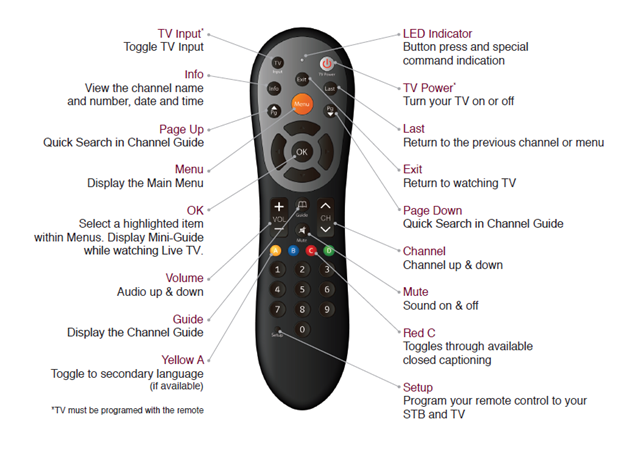
Image Source: customersupport.brctv.com
Grasping Why You Need a Code
Why do universal remotes need a special number, also called a code? Think of it like this: each TV brand and model has its own way of “listening” for commands from a remote. It’s like they speak different languages. Your universal remote needs to learn the specific language (the code) that your TV understands.
A universal remote is made to work with many different devices – TVs, DVD players, soundbars, and more. It doesn’t know how to talk to your specific TV out of the box. When you put in the correct code for your TV’s brand, you are telling the universal remote, “Okay, speak the Sony language,” or “Now, speak the Samsung language,” or whatever brand your TV is.
Once the universal remote knows the code, it can send the right signals to your TV to turn it on or off, change channels, control the volume, and do all the other things your original remote did. The code is the critical piece of information that links your universal remote to your television. Without the code, the universal remote doesn’t know how to send the right signals, and your TV won’t listen to it.
Finding the right code is the most important step in setting up your universal remote. Don’t worry if you don’t have the original small book that came with the remote; there are other simple ways to find the codes you need. We will look at all the easy ways to get these codes.
Where to Look for Codes First
The first and easiest place to find the codes for your TV remote is usually right where you expect it: the little instruction book or guide that came with the universal remote.
Checking Your Remote’s Small Book
Most universal remotes come with a small booklet or a sheet of paper inside the box. This is your universal remote manual. This little book is very important. It often has:
- Simple steps on how to set up the remote (universal remote programming instructions).
- Pictures showing what the buttons do.
- And most importantly, a list of codes!
Look inside this booklet for a section called “Codes,” “Setup Codes,” “TV Codes,” or something similar. You will usually see a list of numbers, often 3, 4, or 5 digits long. These lists are typically sorted by the brand name of the device you want to control.
How to use the booklet:
- Find the section with the codes.
- Look for the name of your TV brand (like LG, Samsung, Sony, Vizio, TCL, etc.).
- Under your TV brand name, you will probably see a list of numbers. These are the codes for that brand.
- There might be just one code, or there might be many codes listed for your brand.
It’s best to start with the first code listed for your TV brand. If that one doesn’t work when you try to set it up, you will need to try the next code on the list. Keep trying the codes one by one until you find the one that works with your TV.
Having this booklet makes finding the code very easy. It’s like having a built-in remote code finder right there with your remote.
Looking at the Company’s Web Pages
If you have the little book but it’s hard to read, or you want to make sure you have the most updated list, you can often find the codes on the website of the company that made your universal remote.
Companies that make universal remotes, like GE, Philips, RCA, or others, have websites. On their website, they usually have a “Support” or “Help” section. In that section, you can often find:
- Digital copies of the universal remote manual.
- A remote control setup guide.
- Lists of universal remote codes.
How to look online:
- Go to the website of the company that made your universal remote. You can usually find the company name on the remote itself or on the box it came in.
- Look for a “Support” or “Help” section.
- Search or look for “codes,” “remote codes,” “setup,” or the model number of your remote.
- You should find a universal remote codes list. This list might be in a PDF document (like a digital copy of the manual) or right there on a web page.
- Just like with the booklet, find your TV brand name on the list.
- Write down the codes for your TV brand.
Checking the company’s website is a good way to get the universal remote codes list even if you lost the little book. It’s often easy to search their site for the exact model of your remote to get the right codes.
Finding Codes When the Book is Lost
What if you lost the little booklet that came with your universal remote? This happens to many people. Don’t worry, you can still find the code you need. There are other simple ways to find your lost TV remote code.
Searching for Codes Online (Remote Code Finders)
The internet is a great place to find universal remote codes lists. Many websites collect codes for different remote brands and TV brands. These sites act like a remote code finder.
You can use a search engine (like Google) to look for codes. What you search for is important. To get the best results, search using:
- The brand name of your universal remote (like “GE universal remote”).
- The model number of your universal remote (this is usually on the back of the remote or inside the battery cover).
- Add words like “codes,” “setup codes,” or “TV codes.”
Example Searches:
- “GE universal remote 34567 codes list”
- “RCA universal remote TV codes”
- “Philips universal remote setup guide”
Searching by Remote Name
When you search online using the brand and model of your universal remote, you are likely to find:
- Links to the remote maker’s official website (as discussed before).
- Websites that specialize in collecting remote codes from many different remote companies.
These sites will have a list of universal remote codes list specifically for your universal remote model. This is important because codes can be different for different universal remote models, even from the same company. Once you find the list for your remote model, you just find your TV brand on that list.
Searching by TV Name (Finding TV Remote Code by Brand)
Sometimes, you might find lists online that are organized by TV brand instead of remote brand. While less common for universal remotes (since the remote model is usually key), you can still search for “Find TV remote code by brand” along with your universal remote brand.
For example, you could search:
- “Universal remote codes list for Samsung TV” (then you might have to filter results by your universal remote brand)
- “Codes for Sony TV with GE universal remote”
The best way is usually to find the list that matches your universal remote model first, and then find your TV brand on that list. However, knowing the TV brand is always needed to find the right code on any list.
Letting the Remote Search for the Code (TV Remote Code Search)
Many universal remotes have a clever feature built-in. They can search for the correct code themselves! This is often called “Code Search” or “Auto Search.” This is a great method if you can’t find the codes online or in a booklet (lost TV remote code).
The exact steps for using the code search are different for each remote model. You usually need to find the specific universal remote programming instructions for your remote. But here are the general steps that work for many remotes:
Simple Steps for Code Search:
H5: Step 1: Get Ready
- Turn on your TV. Make sure it is on, not just in standby mode.
- Point your universal remote at the TV.
H5: Step 2: Start the Search
- Find the button on your universal remote that you use for setup or programming. This button might be labeled “Setup,” “Program,” “Code Search,” or similar. Press and hold this button.
- While holding the setup button, press the button for the device you want to control (like the “TV” button).
- Keep holding both buttons until a light on the remote (often the setup button light or a power light) turns on or starts blinking. This means the remote is ready to search. Now you can let go of the buttons.
H5: Step 3: Begin Searching
- Now, quickly press the “Power” button on the universal remote. The light might blink again.
- The remote is now sending out a signal using one code. It will try different codes very quickly.
H5: Step 4: Watch Your TV
- Point the remote at your TV and keep pressing the “Power” button, but wait a second or two between presses.
- Watch your TV carefully. When you press the power button and the TV turns off, that means the remote just sent the correct code!
H5: Step 5: Save the Code
- As soon as the TV turns off, do not press the power button again. You need to tell the remote to save the code it just found.
- Immediately press the “Setup” or “Program” button again (the same button you used to start). The light on the remote should turn off. This means the code is saved.
H5: Step 6: Test It
- Now, press the “Power” button on the universal remote again. Your TV should turn back on.
- Try other buttons like “Volume Up,” “Volume Down,” and “Channel Up.” If these buttons work, you have found the correct code, and it is saved!
If the first code found by the search method does not control all the functions you want (for example, volume works but channel doesn’t), you might need to repeat the search process. Sometimes, there are multiple codes for a brand, and the next one the search finds might work better.
This TV remote code search method is very useful when you have lost your universal remote manual or cannot find the codes online. The remote finds the code for you.
Asking for Help (Calling Support)
If you have tried checking the booklet, looking online, and using the code search function, and you still cannot find a code that works, you can always contact the company that made your universal remote.
Their customer support team can help you. You will likely need to tell them:
- The brand and model number of your universal remote.
- The brand and model number of your TV.
They might be able to look up specific codes for you, give you more detailed universal remote programming instructions, or help you troubleshoot why the codes you found aren’t working. You can usually find their phone number or email address on the remote’s website or sometimes on the remote itself or its box.
Getting Ready to Use the Code (Program Universal Remote)
Once you have found a code for your TV (whether from the booklet, online list, or code search), the next step is to enter it into your universal remote. This is called programming the universal remote or setting up the remote control.
The exact steps can be slightly different for each universal remote model. It’s always best to look at the specific universal remote manual or programming instructions for your remote if you have them. However, the general idea is usually the same:
Simple Steps to Use the Code (Universal Remote Programming Instructions):
H5: Step 1: Turn On Your TV
- Make sure your TV is turned on.
H5: Step 2: Tell the Remote You Want to Program
- Find the “Setup” or “Program” button on your universal remote. Press and hold this button.
- While holding the setup button, press the button for the device you want to program (like the “TV” button).
- Hold both buttons until the light on the remote turns on or starts blinking. Now you can let go of the buttons. The remote is ready for you to enter the code.
H5: Step 3: Enter the Code
- Using the number buttons on the remote, carefully type in the code you found for your TV brand. For example, if the code is 12345, press 1, then 2, then 3, then 4, then 5.
- As you press the numbers, the light on the remote might blink with each press.
H5: Step 4: Save the Code
- After you type the last digit of the code, the light on the remote should usually turn off. This often means the code was accepted and saved. Sometimes, you might need to press the “Setup” or “Program” button one more time to save it. Look at your remote’s specific instructions if you are not sure.
H5: Step 5: Test the Remote
- Now, point the remote at your TV and try pressing the “Power” button.
- If the TV turns off, that’s a good sign!
- Turn the TV back on using the remote’s power button.
- Try changing the channel (“Channel Up” or “Channel Down”) and controlling the volume (“Volume Up” or “Volume Down”).
- If all the basic buttons work, you have successfully programmed the remote with that code!
What If the First Code Doesn’t Work?
It is very common for a TV brand to have many codes listed. If the first code you entered does not work (the remote doesn’t control the TV at all, or only some buttons work), you just need to try the next code on the list for your TV brand.
Go back to Step 2 (Press and hold Setup + TV) and try the next code from your universal remote codes list. Repeat the test (Step 5). Keep trying the codes one by one until you find the code that works best with your TV. Some codes might work better than others, controlling more functions.
This is why having the full list of codes for your TV brand is helpful. You might need to try a few before finding the perfect match. This process is part of the standard remote control setup guide for universal remotes.
What to Do If Codes Don’t Work
Sometimes, you try all the codes listed for your TV brand, and none of them seem to work correctly. Don’t get too frustrated; there are still a few things you can check or try.
- Double-Check the Code: Make sure you are typing the code numbers correctly. It’s easy to make a mistake with the numbers. Start over and carefully type the code again.
- Check Your Remote Model: Are you sure the universal remote codes list you are using is for your exact universal remote model? Codes can be different even for remotes that look similar or are made by the same company. Look for the model number on the back or inside the battery cover of the remote.
- Check Your TV Brand: Are you absolutely sure of your TV’s brand name? Sometimes people confuse similar brand names. Check the front or back of your TV to be sure.
- Are the Batteries Good? Make sure the batteries in your universal remote are fresh and put in the right way (+ and – ends matching). Low batteries can cause problems.
- Try the Code Search Again: The automatic TV remote code search method (where the remote scans for the code) sometimes works better than manually entering codes from a list. Try performing the code search function again. It might find a code you missed or one that wasn’t on the list you were using.
- Look for a Newer Code List: If you found the codes in an old booklet, check the remote manufacturer’s website online. They might have updated codes for newer TVs.
- The Remote Might Not Be Compatible: In some rare cases, a very old universal remote might not have codes for a very new TV, or a very basic universal remote might not have codes for certain brands or types of TVs. Check the remote’s description or packaging to see what brands it is meant to work with.
- Contact Support: As mentioned before, contacting the universal remote maker’s customer support is a good step if you’ve tried everything else. They have specific tools and knowledge about their remotes and the codes.
Troubleshooting can take a little patience, but usually, one of these steps will help you find a working code or figure out why it’s not working.
Different Kinds of Remotes (Brief Mention)
While this guide focuses on finding codes for standard universal remotes, it’s worth knowing that there are different types:
- Basic Universal Remotes: These are the most common. They work by entering codes from a list or using a code search function. The codes tell the remote how to talk to specific devices.
- Learning Remotes: These remotes don’t just use codes from a list. You can point your original TV remote at the learning remote and “teach” it the commands button by button. This is useful if your TV brand is very rare or very new, and codes are hard to find.
- Smart Remotes / App Control: Many newer smart TVs can be controlled by a smartphone app or a special remote that connects via Wi-Fi or Bluetooth, not just infrared light like traditional remotes. These often don’t use traditional number codes but connect differently. This guide is mostly about traditional universal remotes that use infrared light and codes.
Most universal remotes that use codes are the basic type. Finding the correct universal remote codes list or using the TV remote code search function are the key ways to get them working.
Keeping Track of Your Code
Once you find the code that works perfectly for your TV with your universal remote, it’s a very good idea to write it down!
- Write the code down on a small piece of paper.
- Tape the paper to the back of the universal remote or inside the battery cover.
- Store the universal remote manual (if you have it) in a safe place where you can find it again easily.
- You could even take a picture of the working code list with your phone.
Why do this? If the batteries in the remote die completely, or if you accidentally reset the remote, you might lose the programming. Having the code handy makes it very quick and easy to program the universal remote again. You won’t have to go through the whole process of finding the lost TV remote code or doing the code search again.
Knowing how to program a universal remote is useful, and having the code written down makes it even simpler for the future.
Simple Guide to Common TV Brands (Find TV Remote Code by Brand Examples)
Finding TV remote code by brand is how code lists are usually set up. Here are some common TV brands you might look for in your universal remote codes list:
- Samsung: Very popular brand. Will have many codes listed.
- LG: Also very popular. Expect a long list of codes.
- Sony: Another major brand with a lot of codes across different TV types (LED, LCD, Plasma, etc.).
- Vizio: Common brand, especially in North America. Will have a good number of codes.
- TCL: Growing in popularity. Codes should be available for newer models.
- Hisense: Another popular brand with codes usually included.
- Panasonic: Older, well-known brand. Many universal remotes have codes for Panasonic TVs.
- Sharp: Used to be very common, still codes available.
- Philips: Makes both TVs and universal remotes. Codes are usually easy to find.
- Toshiba: Codes are typically available.
- Insignia (Best Buy brand): Often use codes similar to other manufacturers; check the list for Insignia specifically.
- Element: Similar to Insignia, check for the Element brand.
- Sanyo: Codes are usually listed.
- JVC: Codes are typically available.
- Sceptre: Codes should be listed.
When you look at the universal remote codes list, you will find these brand names, and under each name, there will be one or more codes (numbers). Remember to try the codes one by one until you find the one that works with your specific TV model.
If your TV brand is not on the list, it might be a very old TV, a very new TV, or a less common brand. In that case, the code search method or contacting the remote maker’s support are your best options for finding a working code.
Finding the right code is the main step in remote control setup guide for programming your universal remote. With the code and the simple steps, you can get your remote working quickly.
Frequently Asked Questions (FAQ)
H4: Can I use a universal remote without a code?
For most basic universal remotes that control TVs using infrared signals, no, you need a code. The code tells the remote how to send the correct signals for your specific TV brand. Without the code, the remote doesn’t know what “language” to speak to your TV. Some advanced “learning” remotes or smart remotes that use apps or Wi-Fi might work differently, but standard universal remotes need a code or need to find a code using a search function.
H4: I lost my original TV remote. Can a universal remote replace it?
Yes! That’s exactly what a universal remote is for. If you find the correct code for your TV and program the universal remote, it should be able to do most, if not all, of the basic functions of your original remote (like power, volume, channel, input). Finding the correct universal remote codes list or using the code search is how you make the universal remote work with your TV.
H4: Are universal remote codes the same for all universal remotes?
No, definitely not. This is a common mistake. The codes are specific to the universal remote brand and model you have. A code for a Samsung TV on a GE universal remote list will likely be different from the code for the same Samsung TV on an RCA universal remote list. You must find the universal remote codes list or use the TV remote code search method that matches your specific universal remote model.
H4: My universal remote code list has 10 codes for my TV brand. Do I need to try them all?
You might need to. Start with the first code on the list. Program it into your remote using the steps for how to program a universal remote. Test it. If it doesn’t work or doesn’t control everything, try the next code on the list. Keep trying codes one by one until you find one that works well with your TV.
H4: What if the remote light doesn’t turn on when I hold the setup button?
Check the batteries in your universal remote. They might be dead or low on power. Replace them with fresh batteries and try the programming steps again. If that doesn’t work, the remote might be broken, or you might not be doing the steps exactly right for your model (check the universal remote manual or look up the specific universal remote programming instructions online for your model).
H4: The code search found a code, and the TV turned off, but then the remote won’t turn the TV back on or control anything else. What went wrong?
This can happen. It means the search found a code that turns the TV off, but it might not be the best code for full control. When the TV turns off during the code search, you need to immediately press the “Setup” or “Program” button once to save that code. If you wait too long, the remote might move to the next code. If you saved the code right away and it still doesn’t work fully, you might need to try the code search again and let it find the next code after the one it just found. The next code might work better. Or, you might need to manually enter codes from a list if the search method isn’t finding a good one.
H4: Can a universal remote control more than one TV?
Yes, usually. Universal remotes often have buttons labeled “TV1,” “TV2,” or similar. You can program each of these buttons with the code for a different TV or even other devices like a cable box or DVD player. You would follow the remote control setup guide steps for each device you want to control, assigning each one to a different device button on the universal remote.
H4: Where can I find a reliable remote code finder online?
The most reliable places are usually the official websites of the universal remote manufacturers (like GE, RCA, Philips, etc.). Search for the support section and look for your remote model number. There are also many third-party websites that collect codes, but make sure they seem reputable and that the codes they list are for your specific universal remote brand and model. Searching “universal remote codes list” along with your remote’s brand and model is a good way to start.
Finding the code for your TV remote is usually a simple process once you know where to look and what steps to follow. Whether you use the little book, search online for a universal remote codes list, or let the remote do a TV remote code search, you should be able to find the number you need to program your universal remote. Good luck getting your remote set up!